| character~variables// syntax|. We chose | because it’s not commonly used in HTML attributes or content, making it easy to visually separate each piece of the command and keep things clear.
command|parameter1|parameter2|...
// Execute in browser instance 1
1|Click|ID|submitButton
// Execute in browser instance 2
2|Type|ID|username|John
// Execute in default instance
Click|ID|loginButton
~) before the variable name. For example, ~myVar refers to a variable named myVar.
You can set a variable to a fixed value, load its content from a file, or get it from the text editor. Once set, you can reference that variable in commands later in the script.
// Set a variable to a fixed string:
set|~myVar|Hello World
// Use that variable in a Type command:
Type|ID|usernameField|~myVar
// Set a variable from a file:
set|~myFileVar|file|path/to/file.txt
// Set a variable from text editor:
set|~editorContent|text editor
// Get a value from the page and store in variable:
get|ID|emailField|~userEmail
idname attributeclass namearia-label attributecommand|param1|param2|...
Remember to use Wait between actions to avoid performing tasks too rapidly and risking bans or blocks from websites.
custom|[snippetName]|[arg1]|[arg2]|...<<<BBSH_1>>>, <<<BBSH_2>>>, … to mark insertion points. Arguments map by position.~ (e.g., ~user).// Saved snippet contains: document.querySelector('input[name="q"]').value = "<<<BBSH_1>>>";
custom|search|Selenium tips
set|~user|alice@example.com
set|~pwd|s3cret
custom|loginWith|~user|~pwd
Below is the comprehensive documentation for all available commands in the Browser Bro Shorthand Language.
AssertVisible|[selector]|[value]|[Label OR ~Variable]AssertTriggered message is sent to the engine.~result), the script continues. The variable is updated with "true" (success) or an error message (failure).| Selector Type | Syntax |
|---|---|
| By ID | AssertVisible|ID|myID|Label |
| By name | AssertVisible|name|myName|~status |
| By class | AssertVisible|class|myClass|Label |
| By Text | AssertVisible|text|Content|Label |
| By XPath | AssertVisible|xpath|//div|~var |
// 1. Hard Stop: Ensure login succeeded before continuing
Click|ID|login_btn
Wait|2
AssertVisible|ID|user_dashboard|Login Validation Failed
// 2. Hard Stop: Verify specific text appeared
AssertVisible|text|"Order Confirmed"|Order Confirmation Check
// 3. Soft Check: Check for an optional popup (script continues)
AssertVisible|class|promo-popup|~hasPopup
// (Later custom JS can check if ~hasPopup is "true")
ask|[prompt message]|~variableNameask|Please enter your username|~username
ask|What is your age?|~userAge
ask|Enter search term|~searchQuery
Click|[reference_type]|[reference_value]| Selector Type | Syntax |
|---|---|
| By ID | Click|ID|elementID |
| By name | Click|name|elementName |
| By class | Click|class|elementClass |
| By aria | Click|aria|ariaLabel |
| By XPath | Click|xpath|//tag[@attr='val'] |
| By CSS | Click|css|div > .btn |
| By Text | Click|text|Button Text |
| By Placeholder | Click|placeholder|Enter Search |
| By Data Attr | Click|data|testid=submit-btn |
Click|ID|submitButton
Click|class|btn-primary
Click|xpath|//button[contains(text(),'Submit')]
Click|css|.container > button.active
Click|text|Add to Cart
Click|data|testid=submit-order
Click|placeholder|Click to search
Focus|[reference_type]|[reference_value]| Selector Type | Syntax |
|---|---|
| By ID | Focus|ID|elementID |
| By name | Focus|name|elementName |
| By class | Focus|class|elementClass |
| By aria | Focus|aria|ariaLabel |
| By XPath | Focus|xpath|//input[@type='text'] |
| By CSS | Focus|css|#form > input.email |
Focus|ID|usernameField
Focus|xpath|//div[@id='modal']//input
Focus|css|.login-form input[type='password']
Focus|aria|Email Address
get|[reference_type]|[reference_value]|~variableName| Selector Type | Syntax |
|---|---|
| By ID | get|ID|elementID|~var |
| By name | get|name|elementName|~var |
| By class | get|class|elementClass|~var |
| By aria | get|aria|ariaLabel|~var |
| By XPath | get|xpath|//tag[@id='val']|~var |
| By CSS | get|css|.price > span|~var |
| By Data Attr | get|data|key=val|~var |
get|ID|emailField|~userEmail
get|xpath|//div[@class='total']|~totalPrice
get|css|span.username|~currentUser
get|data|testid=product-id|~pid
Go|Array – Navigate to the Browser Bro Array viewGo|Array|[layout] – Navigate to Array with specific layout (e.g., 2×2, 1×3, 4×1)Go|Forward – Go forward in historyGo|Back – Go back in historyGo|[URL] – Navigate to URLGo|[URL]|param|key1|value1|key2|value2 – URL with query parametersGo|[URL]|path|segment1|segment2 – URL with path segmentsGo|Array
Go|Array|2x2
Go|Array|1x2
Go|Array|3x1
Go|Array|4x4
Go|https://www.example.com
Go|Forward
Go|Back
Go|https://api.example.com|param|apiKey|~myKey|format|json
Go|https://example.com|path|users|~userId|profile
js|[JavaScript code]js|console.log('Hello world!')
js|document.title = 'New Title'
js|alert('Script executed successfully!')
loop|end.loop|[number] – Loop a specific number of timesloop|each line|~sourceVar|~currentLineVar – Loop through linesloop|end – End the loop// Loop 5 times
loop|5
Click|ID|likeButton
Wait|1|Seconds
loop|end
// Loop through each line
set|~names|file|names.txt
loop|each line|~names|~currentName
Type|ID|nameField|~currentName
Click|ID|submitBtn
Wait|2|Seconds
loop|end
// Loop through items
loop|each item|~itemList|~currentItem
js|console.log('Processing item: ~currentItem');
loop|end
Press|[reference_type]|[reference_value]|[key]Press|ID|searchField|Enter
Press|class|text-input|Escape
Press|name|username|a
Press|aria|Message Box|Space
Press|ID|textArea|Backspace
ReloadReload
Scroll|Down|[pixels] – Scroll down by pixelsScroll|Up|[pixels] – Scroll up by pixelsScroll|#elementId – Scroll to element by IDScroll|.elementClass – Scroll to element by classScroll|[pixels] – Default down scrollingScroll|Down|500
Scroll|Up|300
Scroll|#header-section
Scroll|.footer-content
Scroll|400 // Default down scrolling
Select|[reference_type]|[reference_value]|optionValue| Selector Type | Syntax |
|---|---|
| By ID | Select|ID|elementID|option |
| By name | Select|name|elementName|option |
| By class | Select|class|elementClass|option |
| By aria | Select|aria|ariaLabel|option |
| By XPath | Select|xpath|//select[@id='s']|option |
| By CSS | Select|css|.filters select|option |
Select|ID|countryDropdown|US
Select|name|languageSelector|fr
Select|class|form-select|option2
Select|aria|Choose State|CA
Select|xpath|//select[@name='state']|TX
Select|css|#filter-bar select|Newest
set|~variableName|value or set|~variableName|file|path/to/file.txt or set|~variableName|text editorset|~greeting|Hello there!
set|~config|file|config.txt
set|~prompts|text editor
shell|[command] – Use default shell (hidden)shell|visible|[command] – Use default shell (visible window)shell|hidden|[command] – Use default shell (explicitly hidden)shell|powershell|[command] – Use PowerShell (hidden)shell|powershell|visible|[command] – Use PowerShell (visible window)// Default shell (hidden)
shell|ls -la
shell|mkdir new_folder
// Visible shell windows
shell|visible|dir
shell|powershell|visible|Get-Process
// PowerShell with specific visibility
shell|powershell|hidden|New-Item -ItemType Directory -Path "C:\TestFolder"
shell|powershell|visible|Get-ChildItem | Where-Object {$_.Length -gt 1MB}
Snapshot|[method] – Basic snapshotSnapshot|[method]|[scrollAmount] – Scroll down before capturing (optional)Snapshot|[method]|[scrollAmount]|[scrollTarget] – Scroll to specific target first (optional)| Method | Scope | Description & Best Use |
|---|---|---|
visible |
Viewport | Default. Captures exactly what is currently visible in the browser window. Fast and reliable for most standard web pages. |
screen area |
Viewport | 1:1 Fidelity. Takes a native OS screenshot of the screen coordinates where the browser sits. Note: Requires the browser window to be visible and focused. Best for capturing video, WebGL, or plugins. |
snapdom |
Full Page | Modern Standard. Uses the advanced SnapDOM engine. Excellent support for Shadow DOM, modern CSS, and pseudo-elements. Renders the full scrollable page. |
snapdom-visible |
Viewport | Same engine as snapdom but captures only the visible viewport area. |
bbsnapshot |
Full Page | Clean Capture. Aggressively cleans the DOM before capture—removes scrollbars, fixed overlays, and popups to produce a clean “document” style image. |
html2canvas |
Full Page | Legacy engine. Good for compatibility with older sites, but may struggle with modern CSS features like Flexbox or Grid. |
canvas |
Element | Automatically finds the largest HTML5 <canvas> element on the page and saves it as an image. Ideal for saving charts, graphs, or game frames. |
// Standard viewport capture
Snapshot|visible
// Full page capture with modern engine
Snapshot|snapdom
// Clean document capture (removes ads/overlays)
Snapshot|bbsnapshot
// Perfect fidelity (requires window focus)
Snapshot|screen area
// Scroll 500px then capture full page
Snapshot|snapdom|500
// Scroll to specific element then capture
Snapshot|visible|0|#pricing-table
~myVar).| Selector Type | Syntax |
|---|---|
| By ID | Type|ID|elementID|textOr~var |
| By name | Type|name|elementName|textOr~var |
| By class | Type|class|elementClass|textOr~var |
| By aria | Type|aria|ariaLabel|textOr~var |
| By XPath | Type|xpath|//input[@name='q']|text |
| By CSS | Type|css|#login form input|text |
| By Placeholder | Type|placeholder|Enter Username|text |
| Set innerHTML | Type|ID.innerhtml|elementID|htmlContent |
Type|ID|usernameField|TestUser
Type|name|passwordField|~myVar // Using a variable
Type|aria|Search|Find this text
Type|xpath|//input[@type='email']|user@test.com
Type|css|.form-control.first-name|John
Type|placeholder|Your Email Address|me@domain.com
Type|ID.innerhtml|contentDiv|<h1>Hello World</h1>
Wait|[Number] – Wait for seconds (default)Wait|[Number]|Seconds/Minutes/HoursWait|[min,max]|Seconds/Minutes/Hours – Random wait between min and maxWait|5
Wait|5|Seconds
Wait|1|Minutes
Wait|3,6|Seconds // Random wait between 3 and 6 seconds
Zoom|[scale] – Zoom entire page (1 = 100%, 0.5 = 50%, 2 = 200%)Zoom|[reference_type]|[reference_value]|[scale] – Zoom specific element// Page-wide zoom
// Zoom page to 150%
Zoom|1.5
// Zoom page to 80%
Zoom|0.8
// Zoom page to 200%
Zoom|2
// Element-specific zoom
// Zoom element by ID to 120%
Zoom|ID|mainContent|1.2
// Zoom element by class to 90%
Zoom|class|article-text|0.9
// Zoom element by aria-label to 150%
Zoom|aria|Main Article|1.5
// Zoom element by name to 200%
Zoom|name|contentArea|2.0
SmoothZoom|[zoomLevel]|[durationMs]|[easeType]|[optional_referenceType]|[optional_referenceValue]1 for 100%, 1.25 for 125%, 0.8 for 80%). Supports variables with ~.180). Supports variables with ~.linear, easeInQuad, easeOutQuad, easeInOutQuad, easeInCubic, easeOutCubic, easeInOutCubic. Defaults to easeOutQuad. Supports variables with ~.ID, name, class, aria.~.// Smoothly zoom entire page to 150% over 300ms with easeOutQuad
SmoothZoom|1.5|300|easeOutQuad
// Smoothly zoom entire page to 80% over 500ms with easeInOutCubic
SmoothZoom|0.8|500|easeInOutCubic
// Smoothly zoom a specific element by ID to 200% over 400ms
SmoothZoom|2|400|easeOutCubic|ID|contentContainer
// Smoothly zoom a button by class name to 110% over 200ms
SmoothZoom|1.1|200|linear|class|cta-button
// Using variables for dynamic zoom
set|~zoomLevel|1.75
set|~duration|250
SmoothZoom|~zoomLevel|~duration|easeInQuad|aria|Main Content
0.1 (10%) and 5.0 (500%).document.body.style.zoom.transform: scale() with transformOrigin: center.~ prefix.custom|[snippetName]|[arg1]|[arg2]|...<<<BBSH_1>>>, <<<BBSH_2>>>, <<<BBSH_n>>> inside the saved snippet. Arguments map to placeholders in order.// Trigger a snippet with one argument
custom|search|automation
// Use variables as arguments
set|~var|user@example.com
// Each item after the custom script name replaces the placeholder in the script '<<>>','<<>>', etc.
custom|customScriptName|~var|or some text
Wait commands between actions to avoid overwhelming serversWait|3,6|Seconds) to create some variability in the wait times.get command to verify actions completed successfullyBrowser Bro integrates with BrowserApps.io
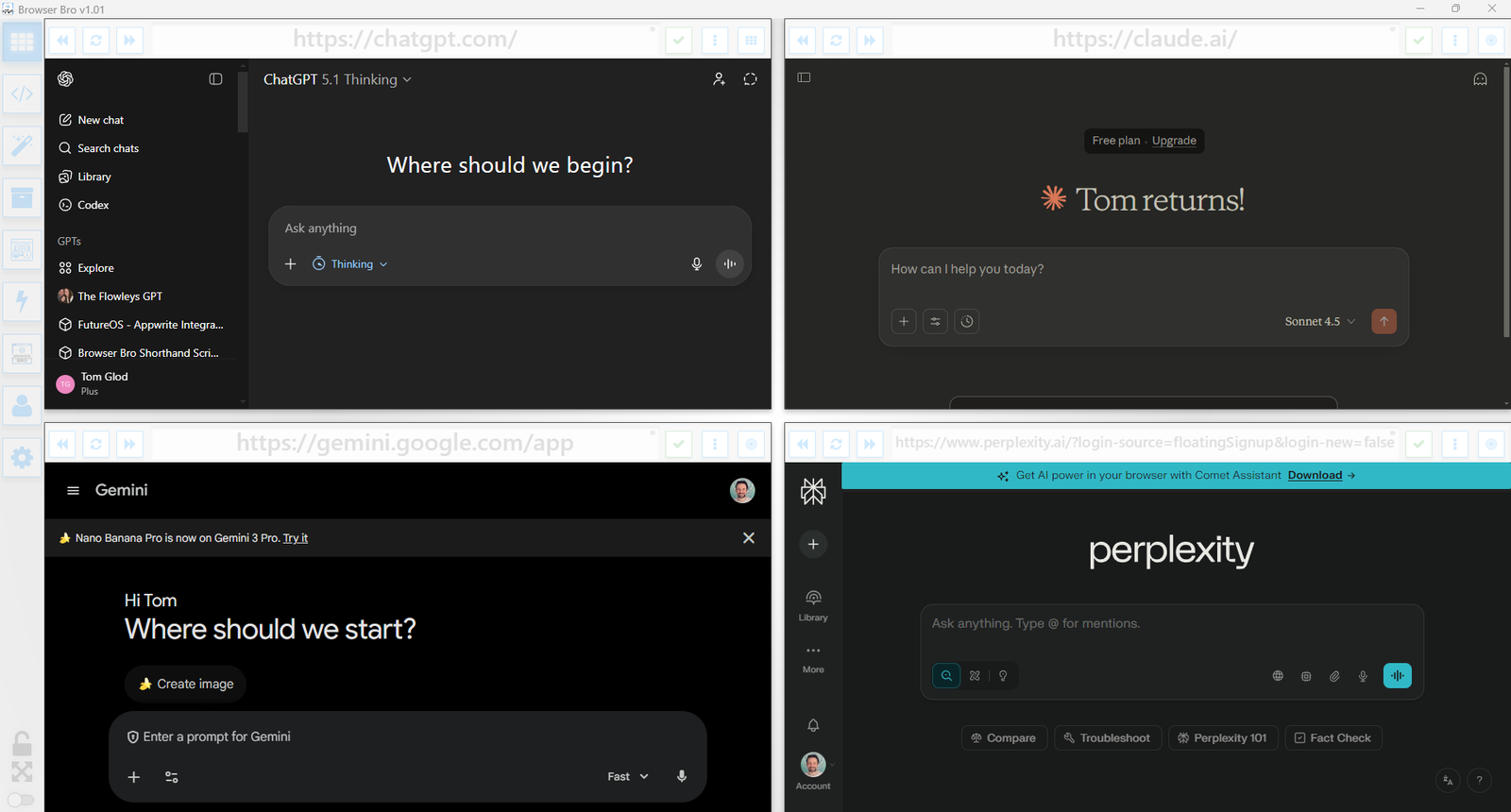
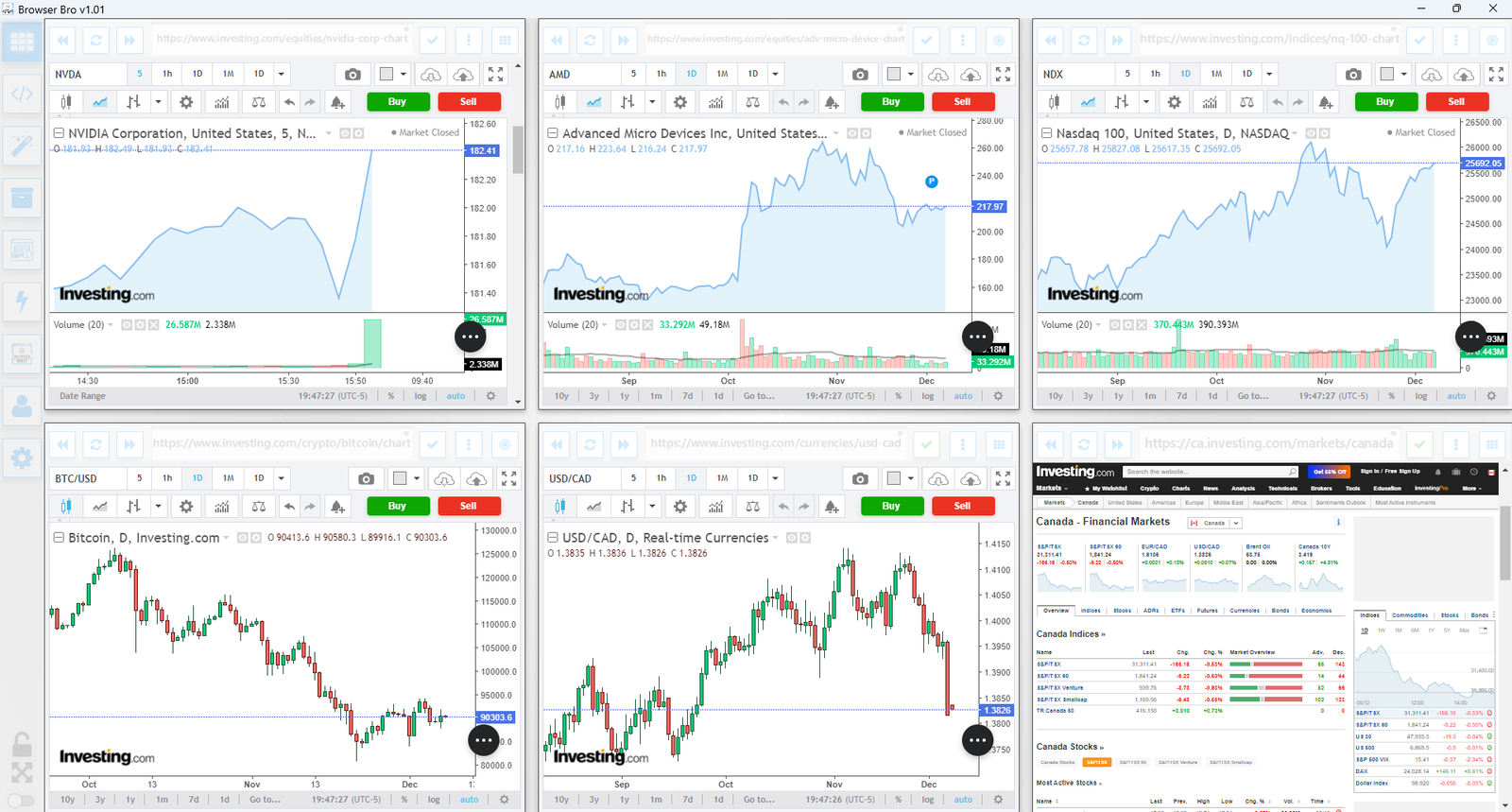
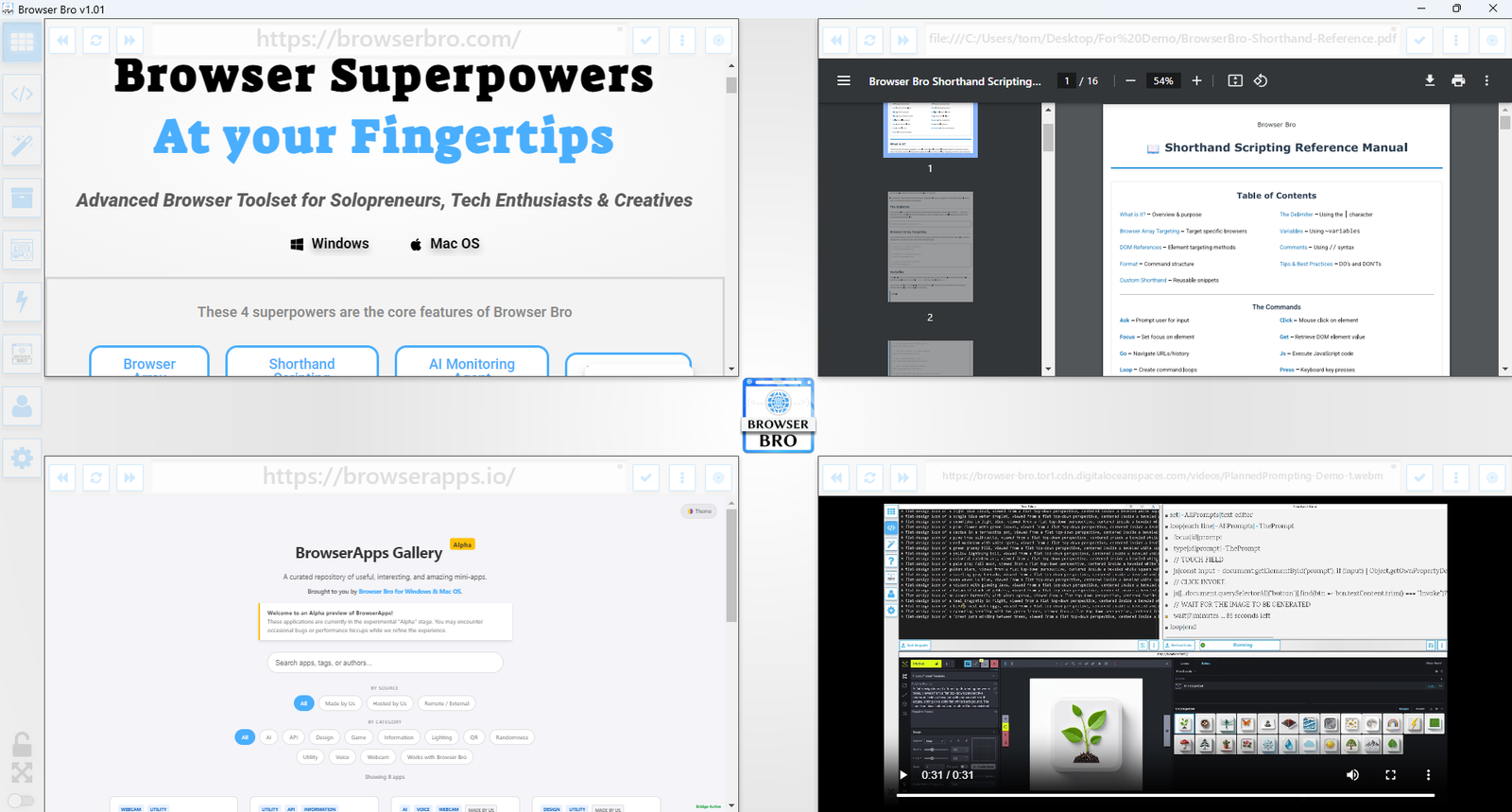
View and manage up to 16 browser instances—all in a single and resizable window. The Browser Array gives you real-time, at-a-glance visibility and makes it effortless to switch between focus and overview modes.
Open anywhere from 1 to 16 browser panels inside your Browser Bro window.
Each panel can be customized with its own URL, zoom level, scroll position, and refresh interval.
For live presentations or focused work, toggle a browser into focus mode to expand it and interact with it directly.
It’s the perfect tool for creators, analysts, trainers, and developers who need more than one tab—and more control than any browser offers by default.
Kiosk Mode is perfect for public displays, demos, training environments, or anywhere you need to lock the browsing experience to a specific page—or category of pages.
Each browser widget in your array can have kiosk mode turned on individually.
You define an Allowed URL Prefix—like https://example.com/training/.
If the user navigates to a page outside of that prefix, Browser Bro refreshes the current page automatically, keeping them inside the allowed range.
No interruptions, no confusion—just a locked-in experience for your audience.
Whether you’re teaching, demoing, pitching, or streaming, Browser Bro turns your screen into a dynamic multi-source stage. Present like a pro with full control over every resource in your array—and capture it all for later.
With screen recording tools, you can capture your full array layout—including focused transitions, annotations, live interactions, and multi-tab storytelling—all in one seamless take.
Whether you’re making a training video, documenting a workflow, or producing a polished walkthrough, Browser Bro array can help your presentation to stand out.
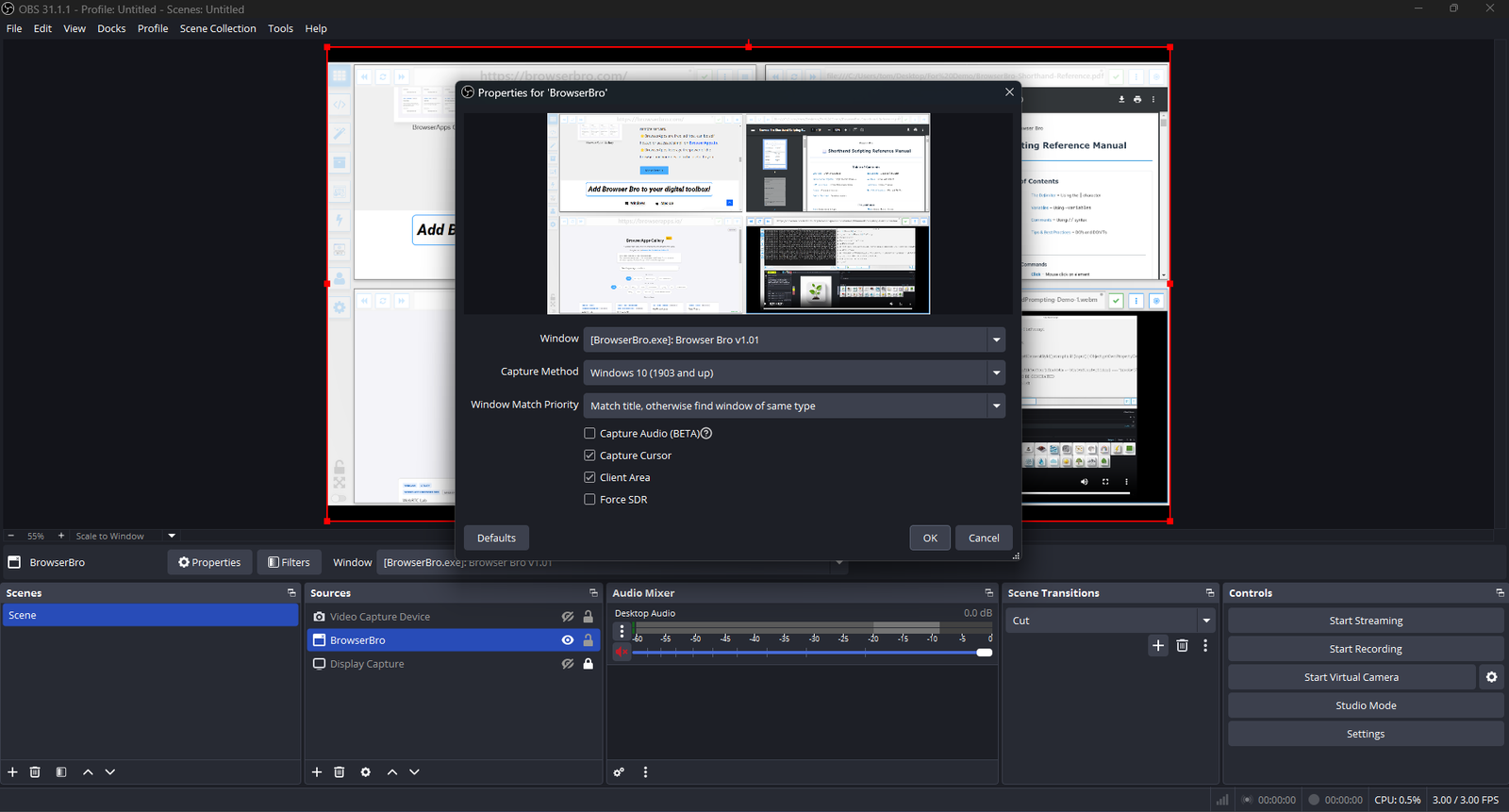
Streamers often need to share portions of multiple live pages at once—chat, alerts, stats, and dashboards. The Browser Array gives you all of them inside a single window. OBS sees that window as one clean source, no extra browser juggling or overlays required.
The Browser Array behaves like a single virtual monitor. OBS captures it once, while each embedded browser inside stays fully live and interactive. This means chat windows, dashboards, and web tools all stay synced and active—without adding more sources or slowing down your stream.
Switch layouts, resize panels, or swap URLs in real time. OBS still sees it as one window, keeping your workflow simple and stable.
Comments
If you need to add notes or temporarily disable certain instructions, start a line with//.