Browser Bro How-Tos

On this page, you will find our ever growing library of How To articles and tutorials.  If you have a question that is not answered using our documentation, you can always contact our support or open a support ticket

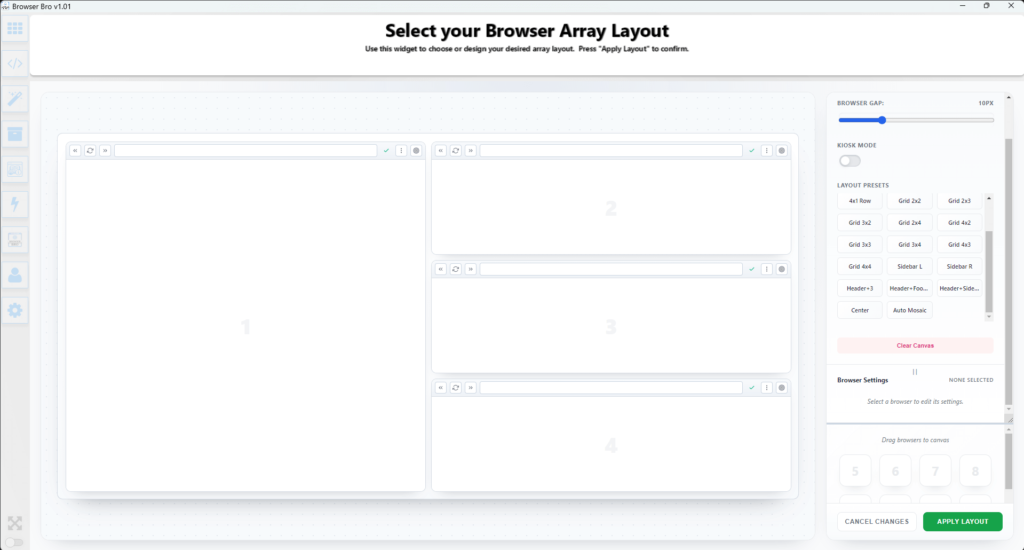
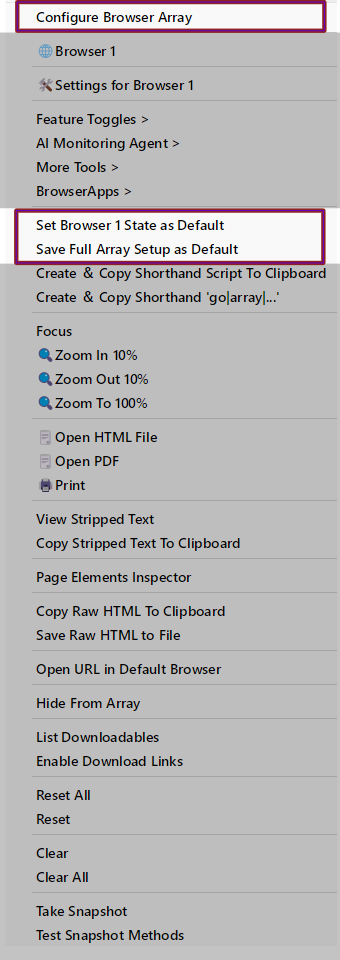
Click the action menu of any of the browsers in the Browser Array. Select “Change Array Layout”

Think about the number of browsers you need and choose the arrangement that works best for your screen space. (you can change it later.)

Next, in each browser, enter the address of each site you wish to go to and press enter.

Zoom and Scroll to the part of the page you want to see.

Ready to Save the state of your array?

Click the action menu and …

To set ALL Browsers at Once, choose “Save Full Array Setup As Default”

to save this particular browser then choose “Set Browser x State as Default”

You can also turn this setup into a shorthand script by selecting “Create & Copy Shorthand Script To Clipboard”

Method 2:

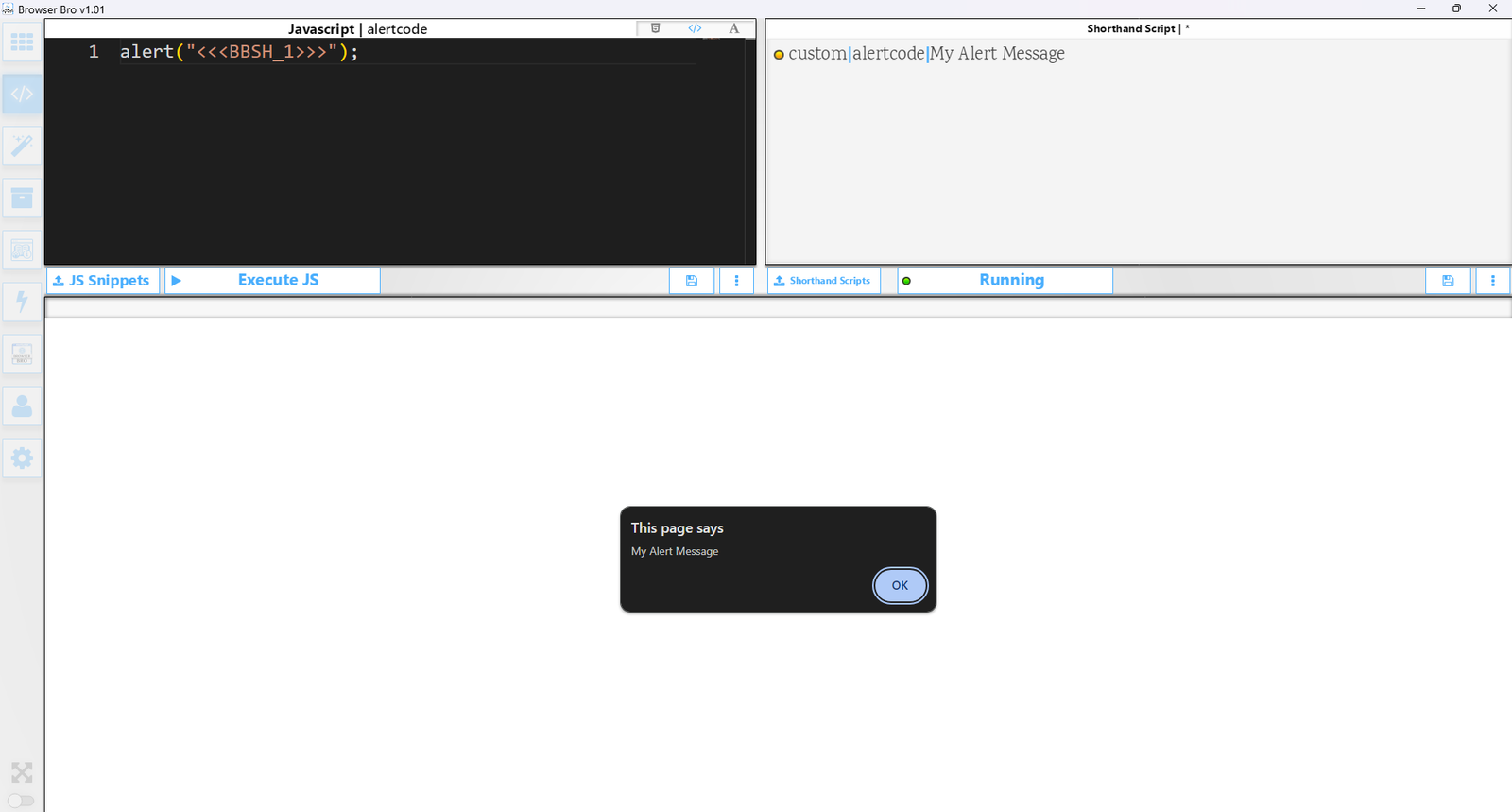
You can also turn this setup into a shorthand script by selecting “Create & Copy Shorthand Script To Clipboard” or by writing the script yourself.  Generating the script includes scroll and zoom commands.

The first command “go|array|1×4” sets a 1 Row,  4 column grid. With the subsequent commands setting the site/page to load.

Its as easy as that.

Using this method lets you then save the script and switch to this setup with one click.
go|array|1x4
1|go|https://www.linkedin.com
2|go|https://www.facebook.com
3|go|https://www.Pintrest.com
4|go|https://bsky.app/

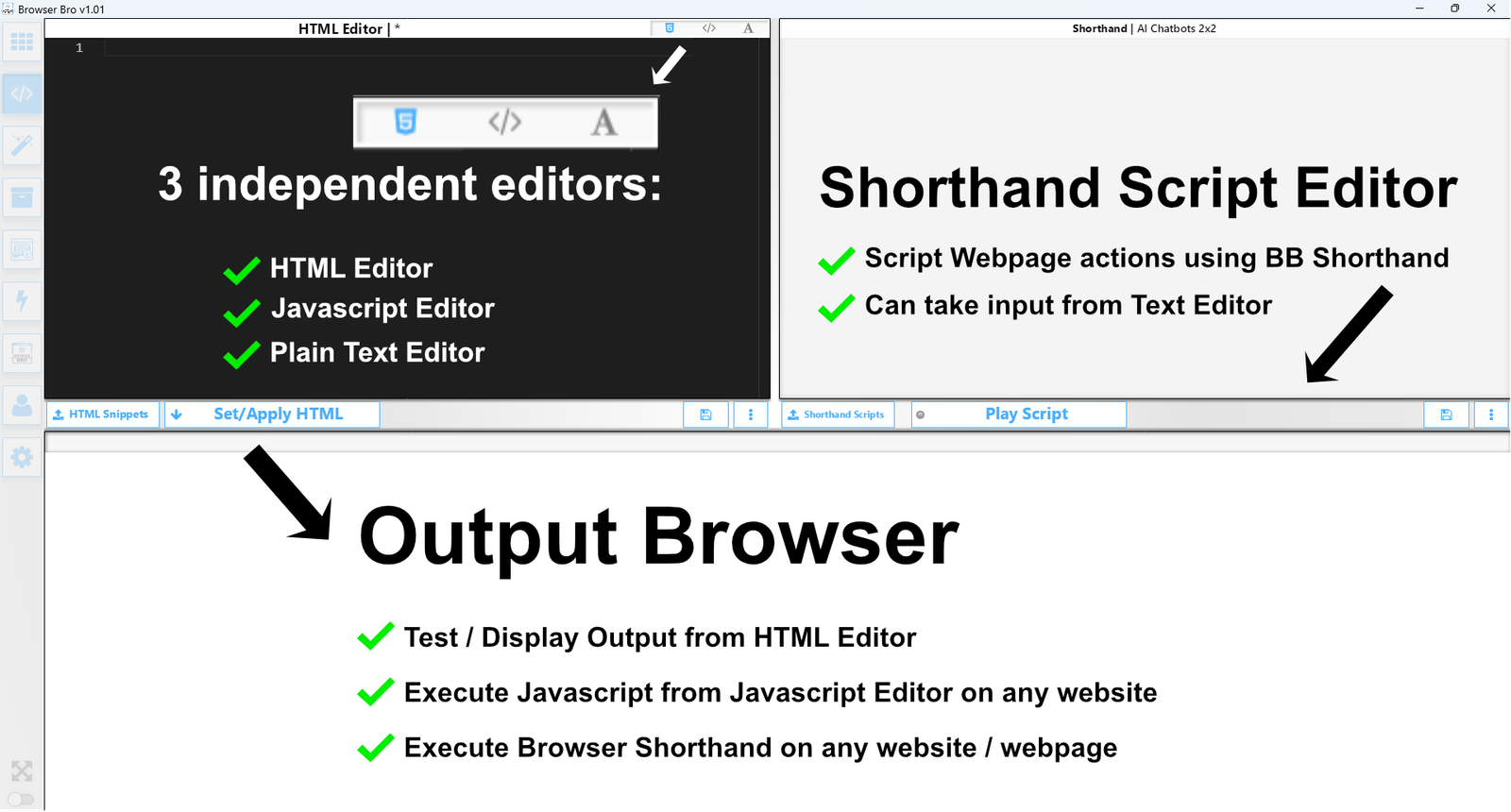
To script interactions with a webpage using Shorthand Scripting is not difficult. Begin by opening the webpage you wish to script into the Output Browser of the Browser Bro Scripting Page. Just type the address in the field above the Output Browser and press enter.

The most important thing to understand is that to effect anything on a webpage you need a way to reference it.
In Browser Bro’s Shorthand Language we can reference controls on a webpage using its HTML attributes.

The TYPE command, for example, supports referencing controls by ID, name, class, aria, XPath, CSS, Placeholder

The easiest is selecting the Right Actions Menu and selecting “Elements List” from the right most actions menu.
Using this tool you can see what controls can be referenced on the page, and you can test which reference method works best.
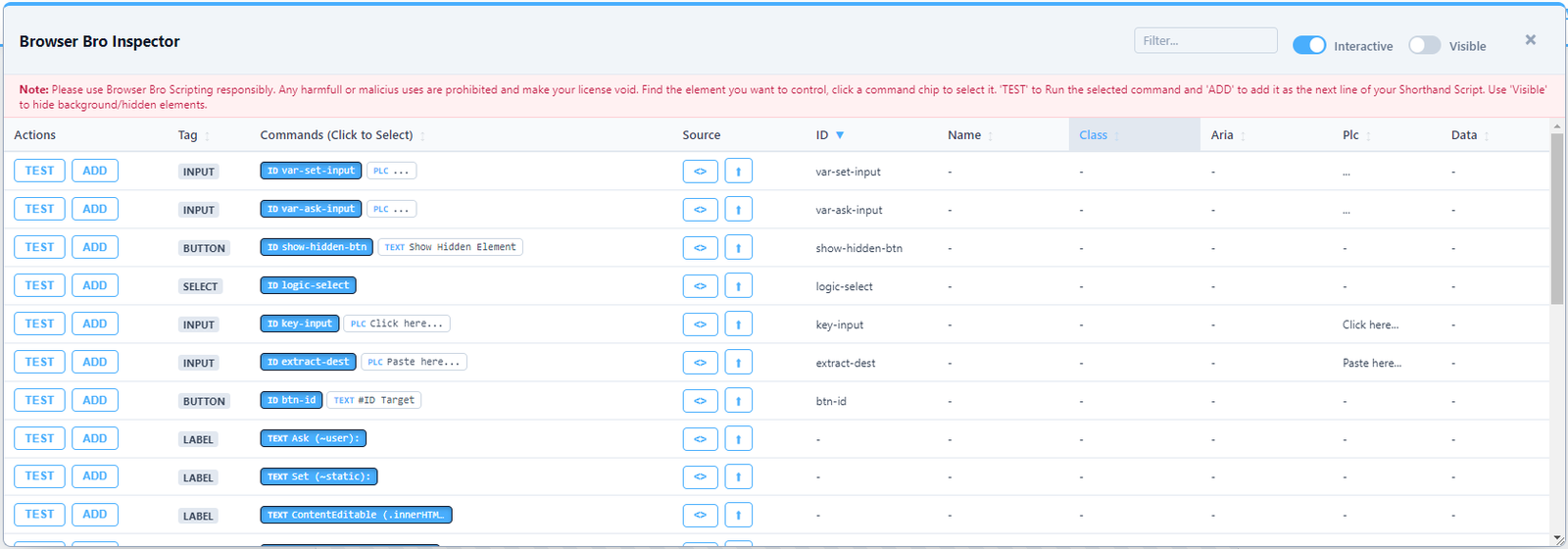
Browser Bro Element Inspector lets you quickly test and put together your

Using this inspector, the ADD and TEST buttons in particular, it is possible to quickly put together a  shorthand script by: 

1. Toggling reference methods and pressing TEST to find which one works.  (You may need to move or resize the inspector overlay so that you can see if it worked.)
2. Using ADD to add it to your shorthand script field after you have seen that it works.

Setting up the monitoring agent is easy, and involves 2 steps:
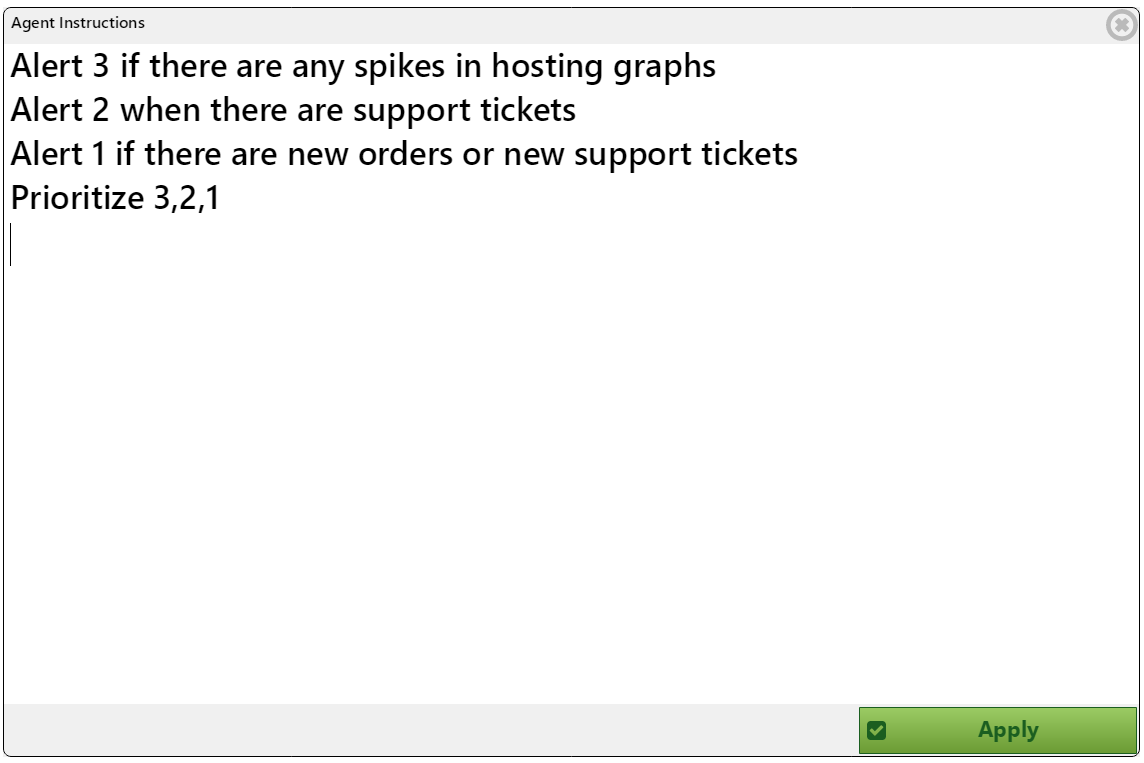
  1. Writing instructions for your agent to follow.  tell it when to when to use alert 1, 2, or 3, and whether to include an email notification.  This is done in the “Monitoring Agent” Section of the Browser Bro Settings.


  2. Define what from each browser (from Browser Array) you wish to send to the Monitoring Agent.
Per Browser AI Monitoring Agent Settings

Smarter Monitoring with Browser Bro Agent LITE

The Browser Bro Monitoring Agent LITE is a versatile assistant for keeping tabs on the websites, data and information you care about — without overwhelming you or your budget.
AI inference costs money, so smart configuration is essential.
With a little bit of effort, and knowing what you want, you can make your Browser Bro AI Agent extremely cost effective.
*/ Please make sure you understand how much your agent will cost you. *\

Cost Model

The Browser Bro Agent LITE sends tokens (text chunks, image data, etc.) to your selected model (OpenAI). Costs depend on:

  • How often the agent sends updates
  • How much content is included in the payload
    Are you sending just text Are you sending image data? or both?
  • Which AI model you’ve selected (Currently only GPT4+ can reliably do monitoring work.  Mini and nano return too many false alarms and are not recommended.)

Optimization Is Everything

To avoid unnecessary spending and to focus your agent’s brainpower, you must optimize what gets sent. Browser Bro gives you several tools to do this:

  • Specify which part of the website to include – Be precise over what you need to send.  Use the include, exclude settings for each of the browsers you are including in the payload.
  • Target Specific sections: Instead of sending the whole page, just send what’s inside #product-list, .price-block, or #status-area.

The web is a very dynamic place and taking a snapshot of a webpage is more complex than one would think.

Browser Bro supports ALL the different ways in which a snapshot of a webpage can be taken.  In most cases, one of them works * best *.

Finding this is easy:

  1. Click the Action menu of the browser you want to take a snapshot of
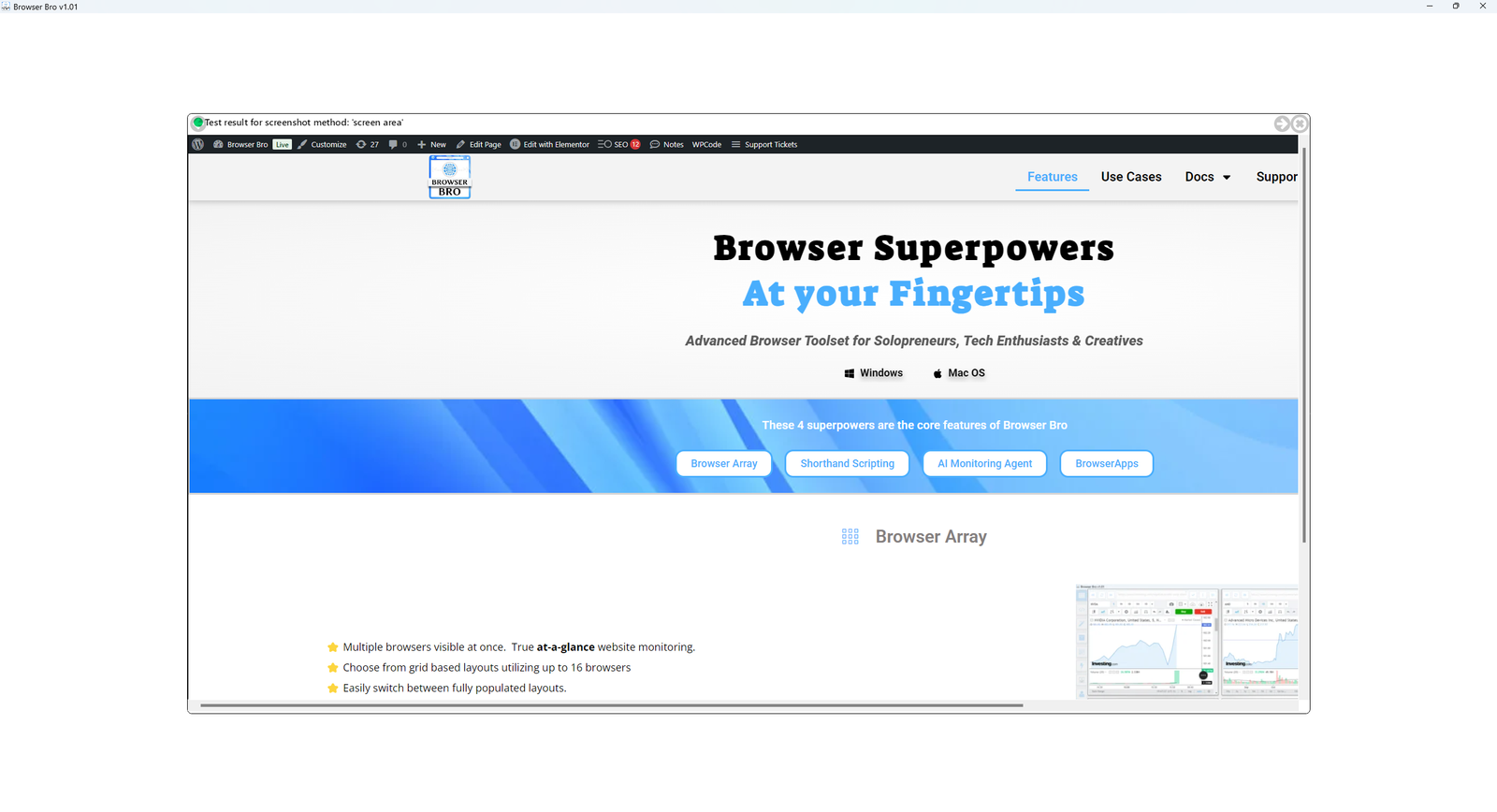
  2. Select “Test Snapshot Methods”
  3. Wait for tests to complete
  4. Using the arrows in the header, cycle through the various tests to see how each one looks .
  5. Click the X to close the test popup
  6. Select “Browser n Settings” from the browser’s “Action Menu”
  7. Set the “Custom Snapshot Method” Setting


Updating Browser Bro is easy, this article can help you understand the update procedure for Browser Bro.

Your Browser Bro Data

It doesn’t matter where your Browser Bro application exists, your Browser Bro data is always in your  /Documents/My BrowserBro Files/ folder.

Step 1: Download the latest Browser Bro version

From the downloads section of your Browser Bro account.

On Mac OS:


Step 2:
Double click to un-compress Browser Bro.
Step 3: 
Drag or cut/paste the BrowserBro application icon into your Applications folder. You will be asked whether to add a second instance or to replace your old one.
Step 4:  Right-Click the BrowserBro icon in your Dock and select “Keep in Dock” (optional)

Windows:


Step 2: Unzip BrowserBro-Windows-Latest.zip by right clicking and choosing “Extract All” and select where to unzip BrowserBro files.
Step 3: 
Copy the folder with the files to where you want Browser Bro to live.
Step 4:  Start BrowserBro.exe
Step 5:  Right-Click the BrowserBro icon and choose ‘Pin to Taskbar.’ (optional)


Scroll to Top

🖥️ Mini Browser Apps 

  • BrowserApps are small apps that solve specific niche problems.
  • BrowserApps are hosted securely at BrowserApps.IO
  • BrowserApps are made with HTML and Javascript and using open source libraries like d3.js or WebGL.
  • BrowserApps code can be inspected fully.
  • BrowserApps can run inside Browser Bro or in your favorite browser.
  • BrowserApps have no “backend” component. What you enter into it stays saved in the Browser you are using, until its cache and cookies are deleted.
  • BrowserApps data are stored in the browser’s storage system. 
  • You can ask for access to the Github Repository for BrowserApps.io
  • Browser apps are free
  • Browser apps are ad-free
  • Browser apps have no usage limits*.

* Some exceptions may apply.

⚡ Current BrowserApps:

WebRTC Lab – WebRTC is a powerful web standard for audio/video communication, including screen sharing, chat and file transfer. This works between between 2 or more people directly without a mediating server.  With webRTC Lab you can do it all. Works with Browser Bro Monitoring Agent.

VideoAid Parental Controls – Parental Controls for online video platforms. Currently supports: Youtube

Magic Page Parser – Parse a webpage into its furious components.  Extract text ready for LLMs. Works with Browser Bro Monitoring Agent.

Dicey Vibes – For when you need to roll some dice.

QR Code Generator – Create PNG QR codes of every kind. Add your logo.

Color Theory – A quick way to find complementary colors, or decide on color sets.

Light Effects Lab – A fun little app for when you need lighting effects for a video or a stream.

Rest-With-API – This app lets you query web APIs, periodically.  Works with Browser Bro Monitoring Agent.

🖥️ Browser Array – Monitoring & Presentation

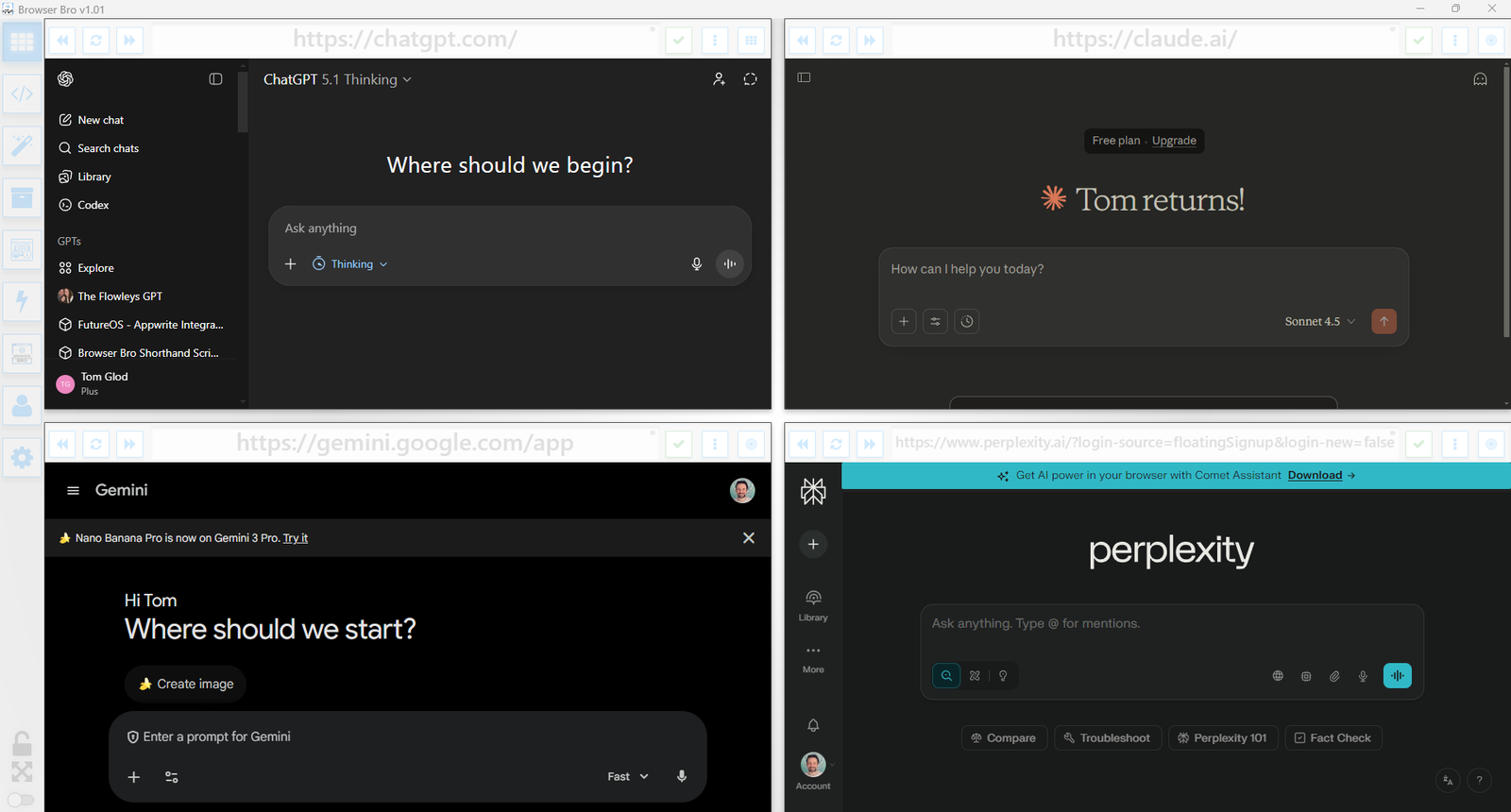
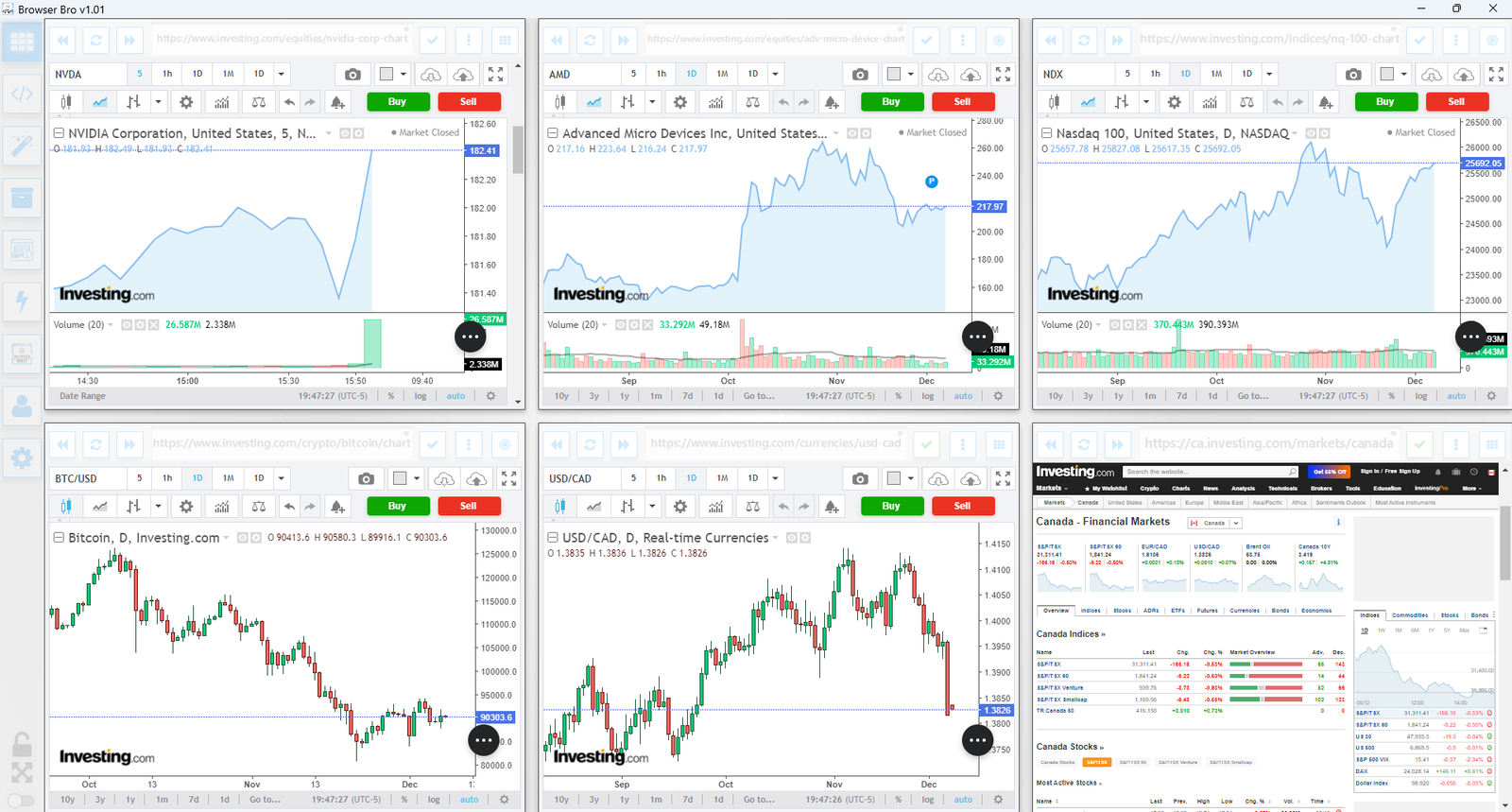
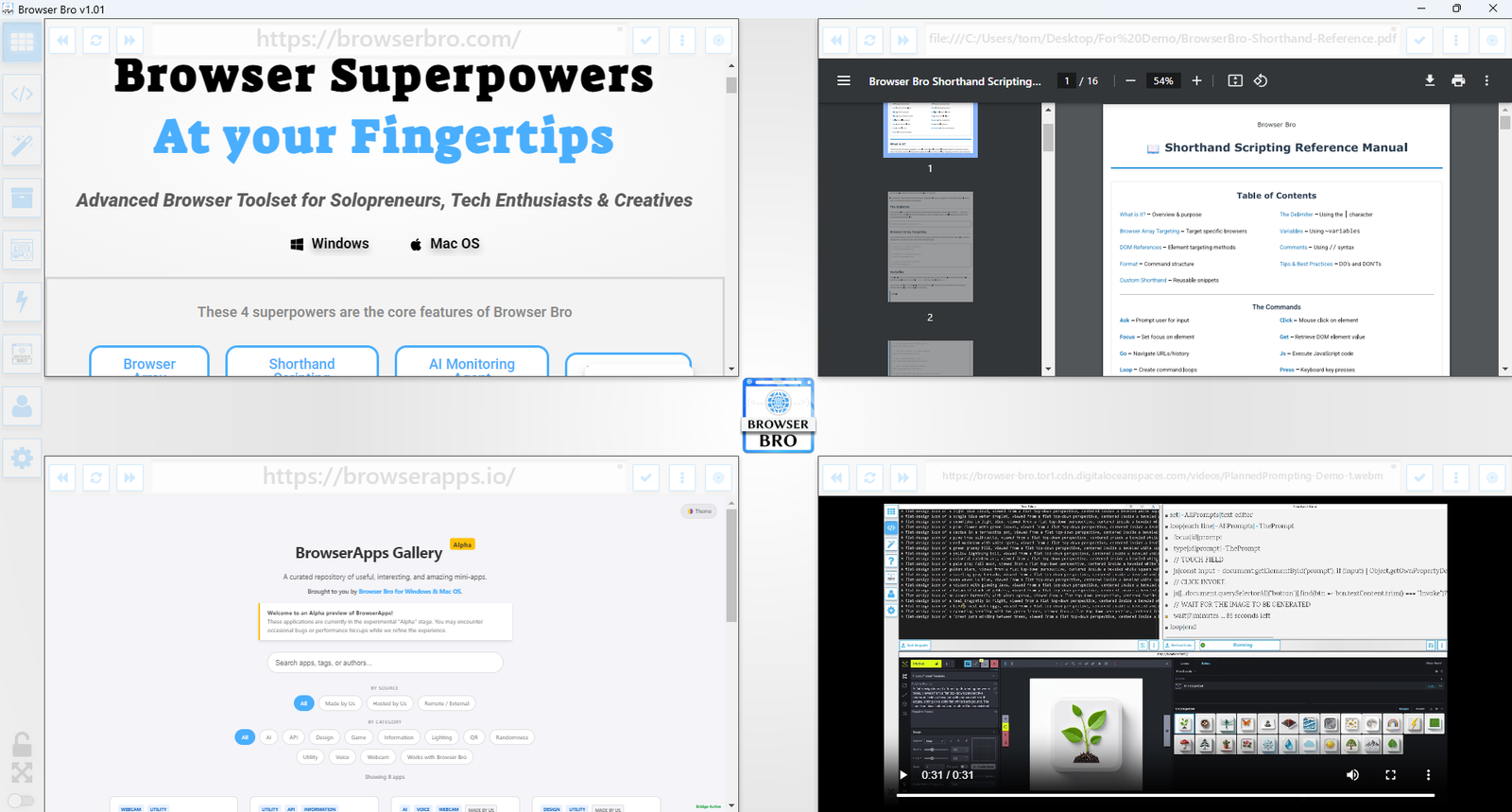
View and manage up to 16 browser instances—all in a single and resizable window. The Browser Array gives you real-time, at-a-glance visibility and makes it effortless to switch between focus and overview modes.

  • ✅ Monitor up to 16 live websites side-by-side
  • ✅ Works great with dashboards, analytics, social feeds, and more
  • ✅ Set per-browser zoom, scroll, and auto-refresh
  • ✅ Focus mode lets you enlarge and control one browser at a time
  • ✅ Present content cleanly from a single or multi-browser view
  • ✅ Easily automate actions in each browser using Shorthand Scripts

How It Works

Open anywhere from 1 to 16 browser panels inside your Browser Bro window.

Each panel can be customized with its own URL, zoom level, scroll position, and refresh interval.

For live presentations or focused work, toggle a browser into focus mode to expand it and interact with it directly.

It’s the perfect tool for creators, analysts, trainers, and developers who need more than one tab—and more control than any browser offers by default.

🔒 Kiosk Mode

Kiosk Mode is perfect for public displays, demos, training environments, or anywhere you need to lock the browsing experience to a specific page—or category of pages.

  • ✅ Prevents navigation away from chosen content
  • ✅ Easy to configure per browser widget
  • ✅ Works with URL prefixes to define “safe zones”
  • ✅ Instantly reloads if a user tries to go off-limits
  • ✅ Ideal for kiosks, classrooms, or training labs

How It Works

Each browser widget in your array can have kiosk mode turned on individually.

You define an Allowed URL Prefix—like https://example.com/training/.

If the user navigates to a page outside of that prefix, Browser Bro refreshes the current page automatically, keeping them inside the allowed range.

No interruptions, no confusion—just a locked-in experience for your audience.

📊 Nail Your Next Presentation

Whether you’re teaching, demoing, pitching, or streaming, Browser Bro turns your screen into a dynamic multi-source stage. Present like a pro with full control over every resource in your array.

  • ✅ Load up to 16 different resources at once—each in its own browser panel
  • ✅ Focus on any resource instantly, or cycle through them one by one
  • ✅ Include any browser-viewable content: websites, dashboards, slides, docs, videos, PDFs
  • ✅ Use kiosk mode to keep the presentation safe and locked-in

Record Your Presentations

With screen recording tools, you can capture your full array layout—including focused transitions, annotations, live interactions, and multi-tab storytelling—all in one seamless take.

Whether you’re making a training video, documenting a workflow, or producing a polished walkthrough, Browser Bro array can help your presentation to stand out.

🎥 Streamers: Browser Array + OBS

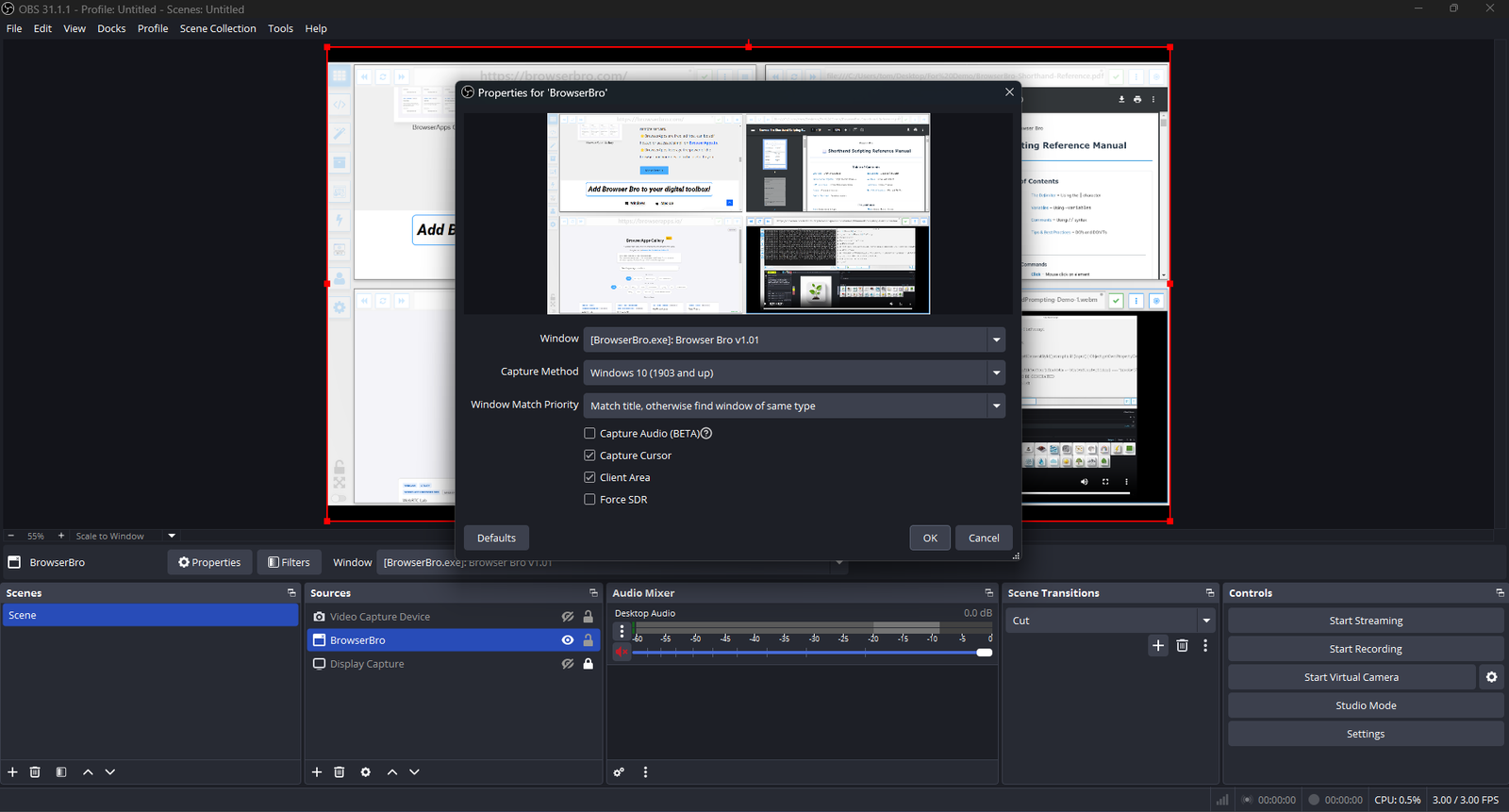
Streamers often need to share portions of multiple live pages at once—chat, alerts, stats, and dashboards. The Browser Array gives you all of them inside a single window. OBS sees that window as one clean source, no extra browser juggling or overlays required.

  • ✅ Combine multiple browsers into one OBS-ready window
  • ✅ Up to 16 live sites displayed in a grid or column view
  • ✅ Individual panel controls: zoom, scroll, and optional auto-refresh
  • ✅ Focus Mode to highlight one panel full-screen without changing your scene setup
  • ✅ Optional branding or layout presets for polished streaming setups (Advanced+)

One Source, Many Browsers

The Browser Array behaves like a single virtual monitor. OBS captures it once, while each embedded browser inside stays fully live and interactive. This means chat windows, dashboards, and web tools all stay synced and active—without adding more sources or slowing down your stream.

Switch layouts, resize panels, or swap URLs in real time. OBS still sees it as one window, keeping your workflow simple and stable.

Common Streaming Uses

  • Chat, alerts, and analytics in one live feed
  • Keeping sponsor pages and timers visible off-camera
  • Browser-based demos or web tutorials without scene switching