In a totally predictable, but still surprising synchronicity, the perfect use case for the monitoring Agent has occurred for us, the creators of Browser Bro.
One of our co-founders website is experiencing random bugs where all the styling from every page of the site BREAKS, not just a little, but completely.
We know how to fix it when it happens, but we don’t yet know why it happens.
We’ve made changes to the website and updated everything.

We do want to know, as soon as possible, when it happens again so that we can fix it.
If only there was a second pair of eyes that could keep an eye on this for us, for a while, to let us know that the site has broken.

The workflow

Prompt the Agent:

1. Go to Settings > Toggle to “Monitoring Agent”
2. Click On “Agent Prompt” field
3. We enter our prompt: “Alert level 3 and send email when the styling of the page seems to be broken, you will know its broken when ….”
4. Press Apply to Save the Prompt

About the prompt: Saying Alert 3 and send email, we will ensure the alert level 3 is displayed visually and the alert sound is played.  At the same time there is an email alert that is sent.

There are 3 Levels. 1 is a soft chime, 2 is a more …alert … alert.  3 is both a serious and somewhat humorous alert sound, that will definitely get your attention.
(You’ll be able to use custom sounds in a future update)

Add Payload:

We’re not done yet, now we have to include a screenshot of the website

To do this, still on the Settings Page

5. We go to “Browser 1 Settings” (or whichever browser will contain the website we are monitoring)  Yes, you can monitor multiple websites, with some caveats)

6. Set the “Include with Agent Payload” to ON
7. Select whether to send just a snapshot of the webpage or the text of the webpage, or both.

False Alarms & Other Observations

In our testing of the Monitoring Agent, this is what we found:

  • When a blank image is sent as a screenshot, or nothing is sent, as text.  The model hallucinates, leading to false alarms.  Especially the mini and nano variants.
  • Sending really long pages, sometimes fails, and is quite slow, see this blog to learn how you can optimize your monitoring agent’s payload.
  • You do have to test that you website’s screenshot is properly sent.  You may have to tweak some settings before you find the setting that works best on the particular site you wish to monitor.
 

Scroll to Top

🖥️ Browser Array – Monitoring & Presentation

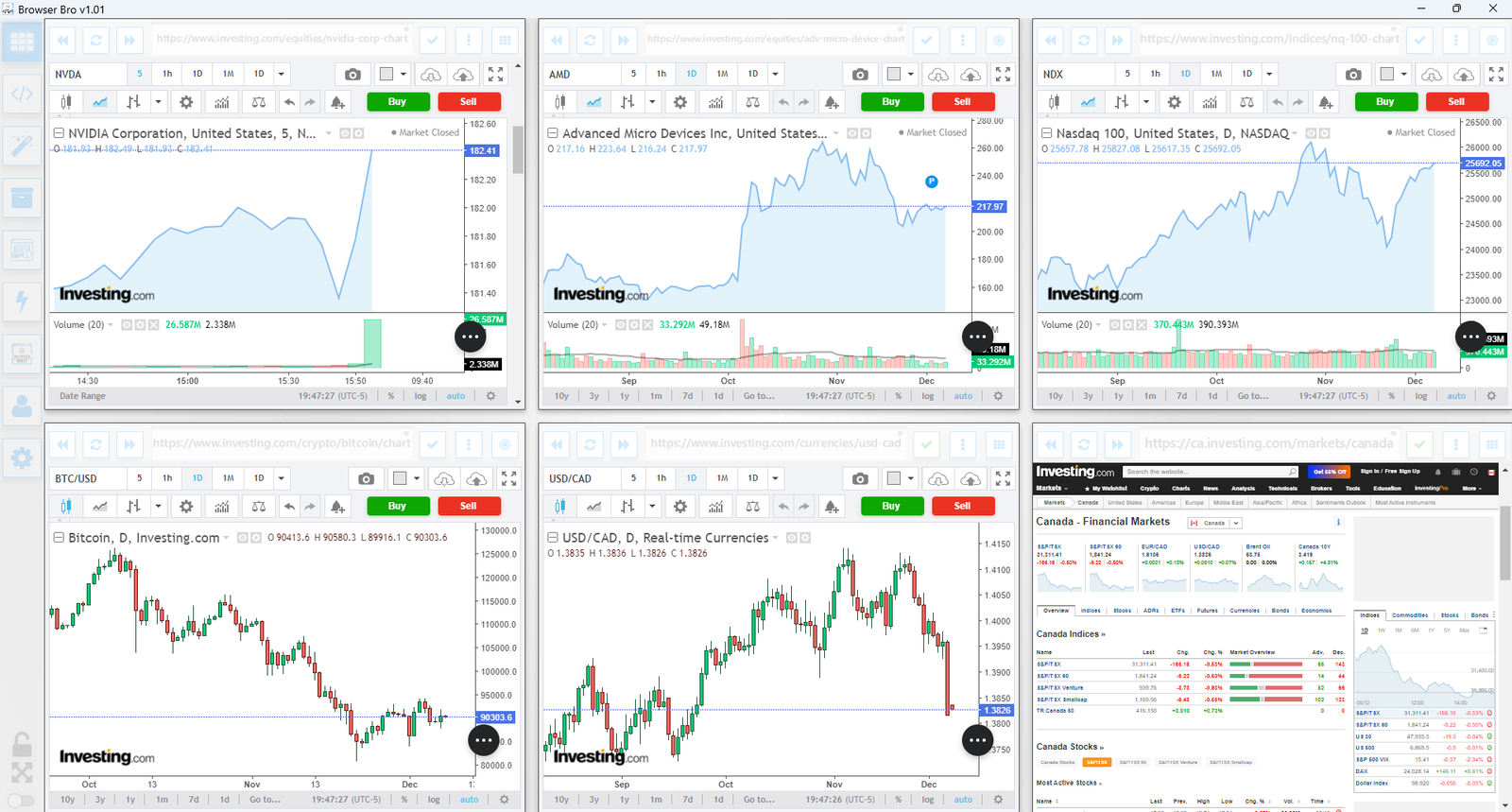
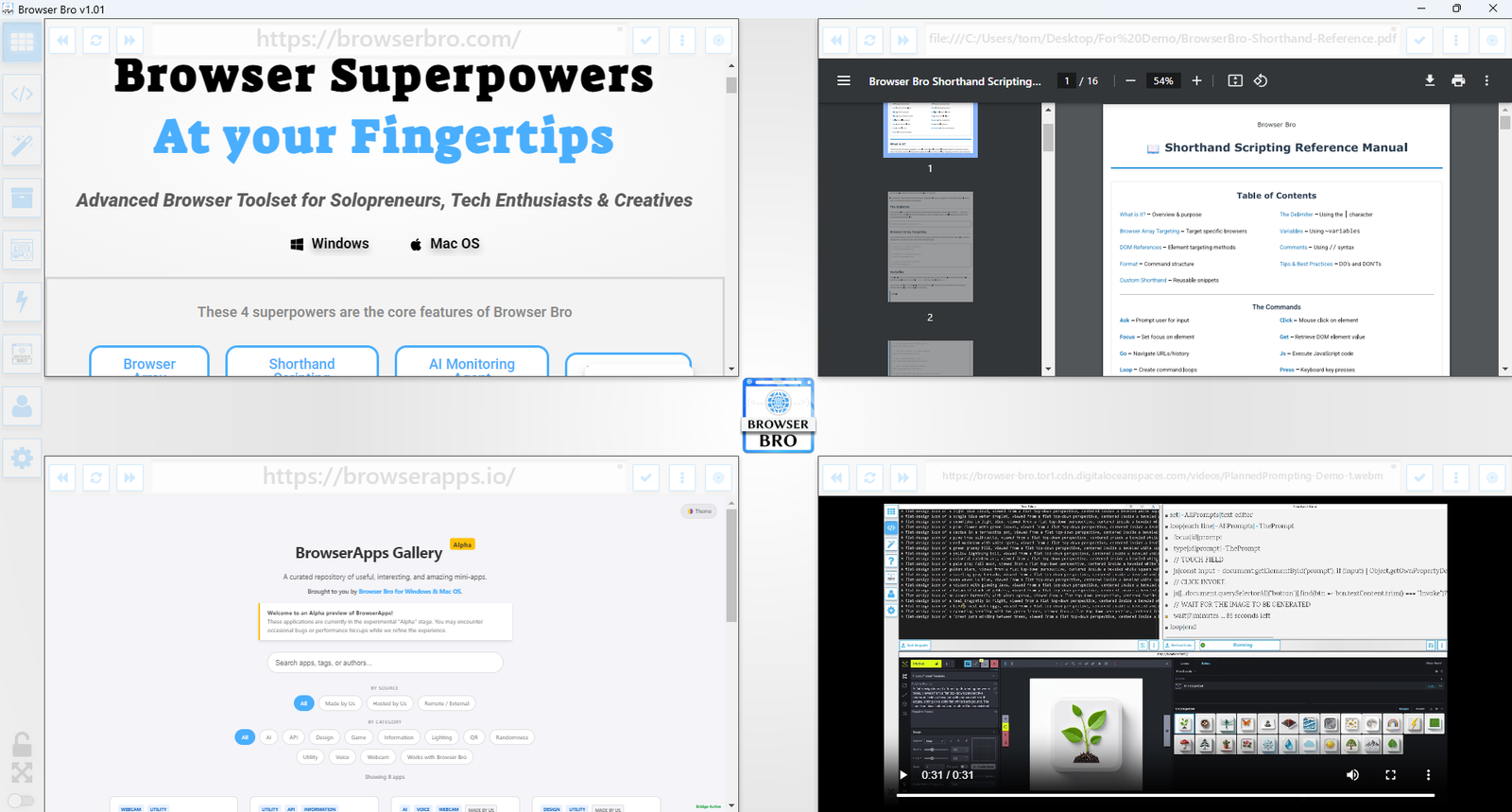
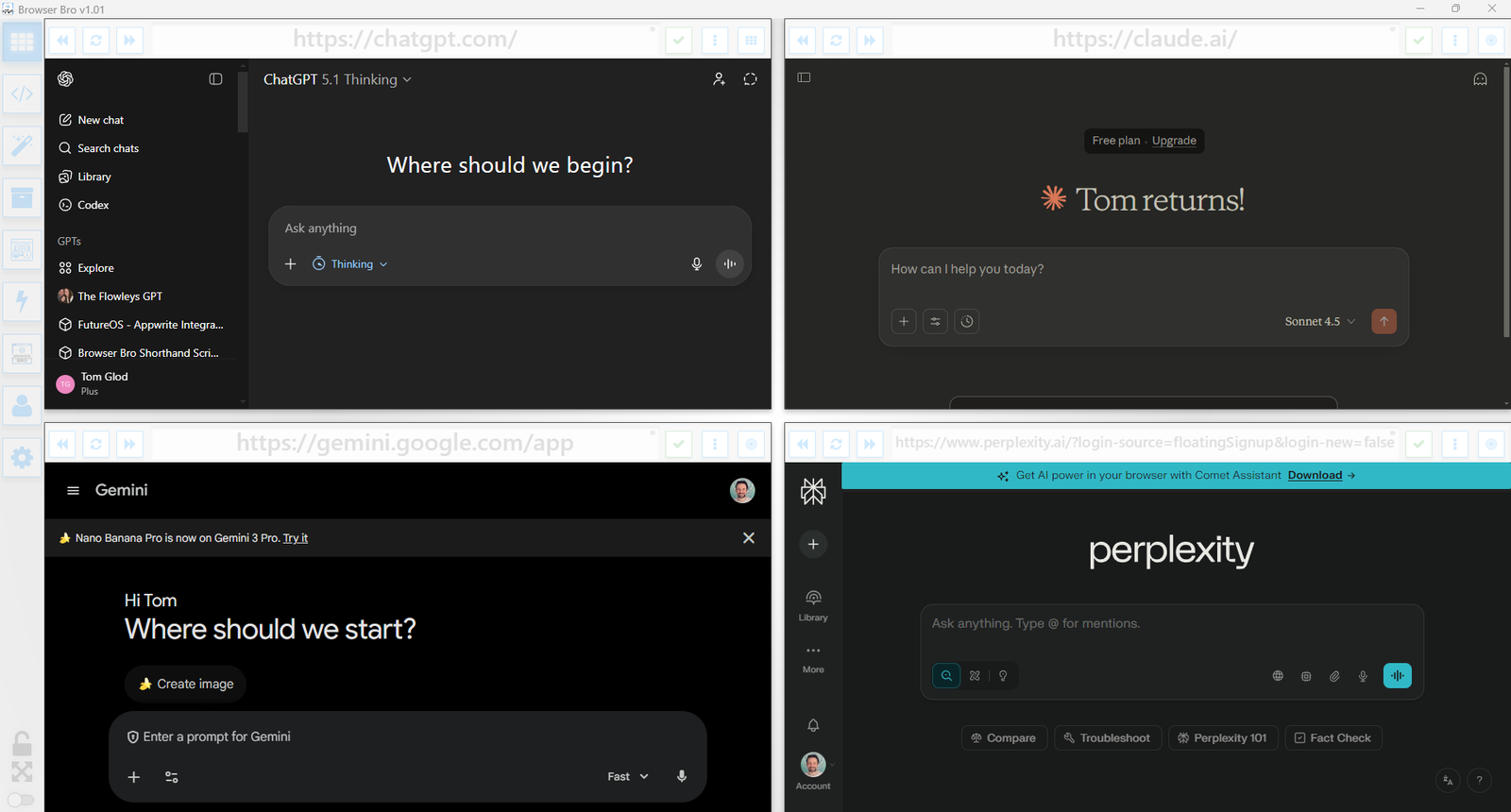
View and manage up to 16 browser instances—all in a single and resizable window. The Browser Array gives you real-time, at-a-glance visibility and makes it effortless to switch between focus and overview modes.

  • ✅ Monitor up to 16 live websites side-by-side
  • ✅ Works great with dashboards, analytics, social feeds, and more
  • ✅ Set per-browser zoom, scroll, and auto-refresh
  • ✅ Focus mode lets you enlarge and control one browser at a time
  • ✅ Present content cleanly from a single or multi-browser view
  • ✅ Easily automate actions in each browser using Shorthand Scripts

How It Works

Open anywhere from 1 to 16 browser panels inside your Browser Bro window.

Each panel can be customized with its own URL, zoom level, scroll position, and refresh interval.

For live presentations or focused work, toggle a browser into focus mode to expand it and interact with it directly.

It’s the perfect tool for creators, analysts, trainers, and developers who need more than one tab—and more control than any browser offers by default.

🔒 Kiosk Mode

Kiosk Mode is perfect for public displays, demos, training environments, or anywhere you need to lock the browsing experience to a specific page—or category of pages.

  • ✅ Prevents navigation away from chosen content
  • ✅ Easy to configure per browser widget
  • ✅ Works with URL prefixes to define “safe zones”
  • ✅ Instantly reloads if a user tries to go off-limits
  • ✅ Ideal for kiosks, classrooms, or training labs

How It Works

Each browser widget in your array can have kiosk mode turned on individually.

You define an Allowed URL Prefix—like https://example.com/training/.

If the user navigates to a page outside of that prefix, Browser Bro refreshes the current page automatically, keeping them inside the allowed range.

No interruptions, no confusion—just a locked-in experience for your audience.

📊 Nail Your Next Presentation

Whether you’re teaching, demoing, pitching, or streaming, Browser Bro turns your screen into a dynamic multi-source stage. Present like a pro with full control over every resource in your array.

  • ✅ Load up to 16 different resources at once—each in its own browser panel
  • ✅ Focus on any resource instantly, or cycle through them one by one
  • ✅ Include any browser-viewable content: websites, dashboards, slides, docs, videos, PDFs
  • ✅ Use kiosk mode to keep the presentation safe and locked-in

Record Your Presentations

With screen recording tools, you can capture your full array layout—including focused transitions, annotations, live interactions, and multi-tab storytelling—all in one seamless take.

Whether you’re making a training video, documenting a workflow, or producing a polished walkthrough, Browser Bro array can help your presentation to stand out.

🎥 Streamers: Browser Array + OBS

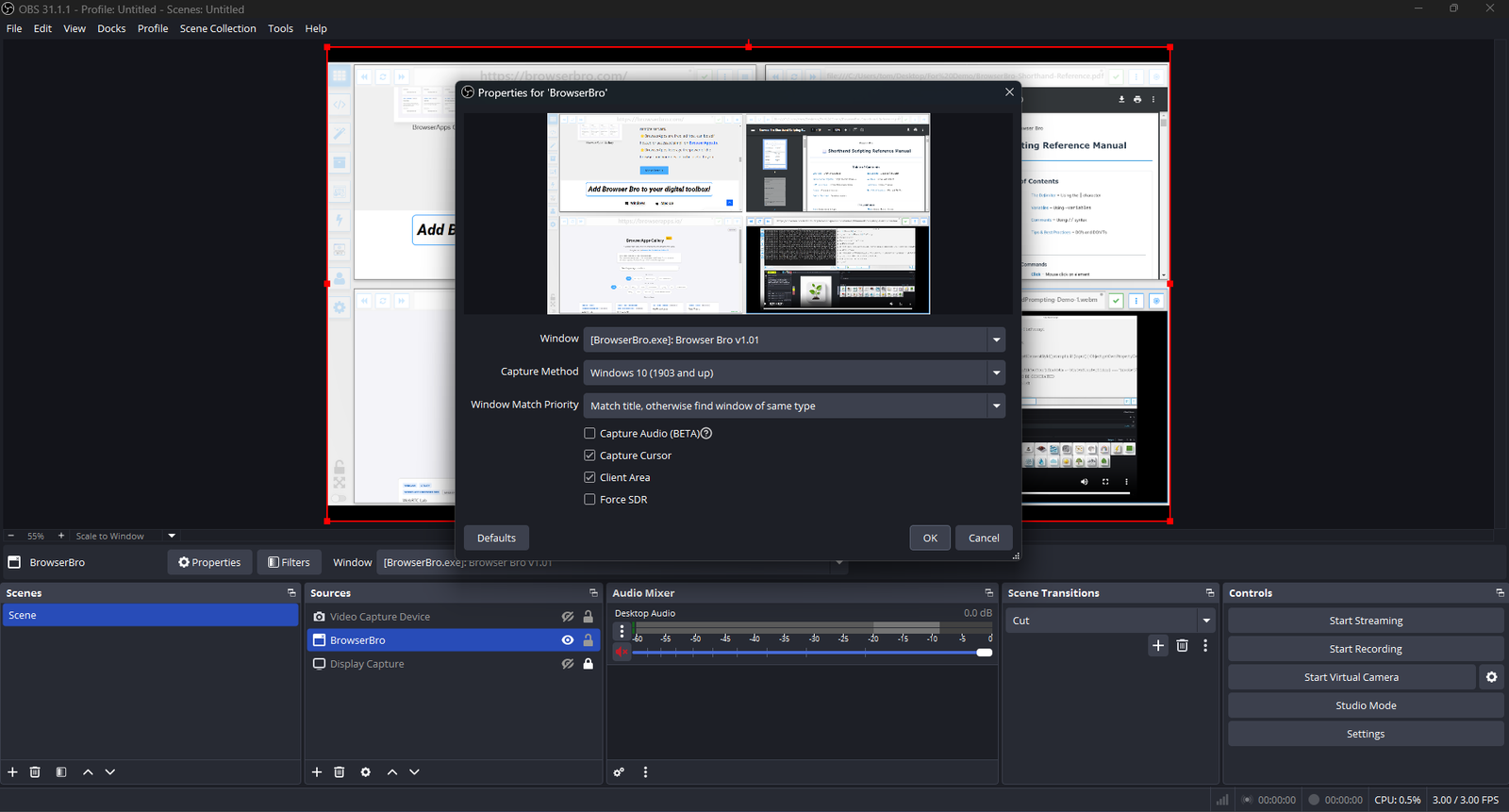
Streamers often need to share portions of multiple live pages at once—chat, alerts, stats, and dashboards. The Browser Array gives you all of them inside a single window. OBS sees that window as one clean source, no extra browser juggling or overlays required.

  • ✅ Combine multiple browsers into one OBS-ready window
  • ✅ Up to 16 live sites displayed in a grid or column view
  • ✅ Individual panel controls: zoom, scroll, and optional auto-refresh
  • ✅ Focus Mode to highlight one panel full-screen without changing your scene setup
  • ✅ Optional branding or layout presets for polished streaming setups (Advanced+)

One Source, Many Browsers

The Browser Array behaves like a single virtual monitor. OBS captures it once, while each embedded browser inside stays fully live and interactive. This means chat windows, dashboards, and web tools all stay synced and active—without adding more sources or slowing down your stream.

Switch layouts, resize panels, or swap URLs in real time. OBS still sees it as one window, keeping your workflow simple and stable.

Common Streaming Uses

  • Chat, alerts, and analytics in one live feed
  • Keeping sponsor pages and timers visible off-camera
  • Browser-based demos or web tutorials without scene switching
0
Would love your thoughts, please comment.x
()
x