One of the most powerful applications of Planned Prompting in Browser Bro is automating and scaling image generation workflows. Whether you’re a digital artist, a dataset engineer, or running a creative agency, this feature unlocks next-level efficiency and control.
Everyone knows the key to image generation is the quality of your prompt, the planned prompting workflow therefore, is to focus on the most important part first.

 Workflow Overview

  1. Research the right prompt format for your current project. Having a consistent prompting format gives you the best chance of having consistent results. You can now manually create or ask AI to write the prompts for your project, in this format. Good image generation prompts are detailed in just the right way.
  2. Generate / Confirm Your Prompt List: Create a simple text file with a list of prompts, each on a new line. These prompts can describe scenes, characters, moods, or variations.  One per line. (It can be a really long line)
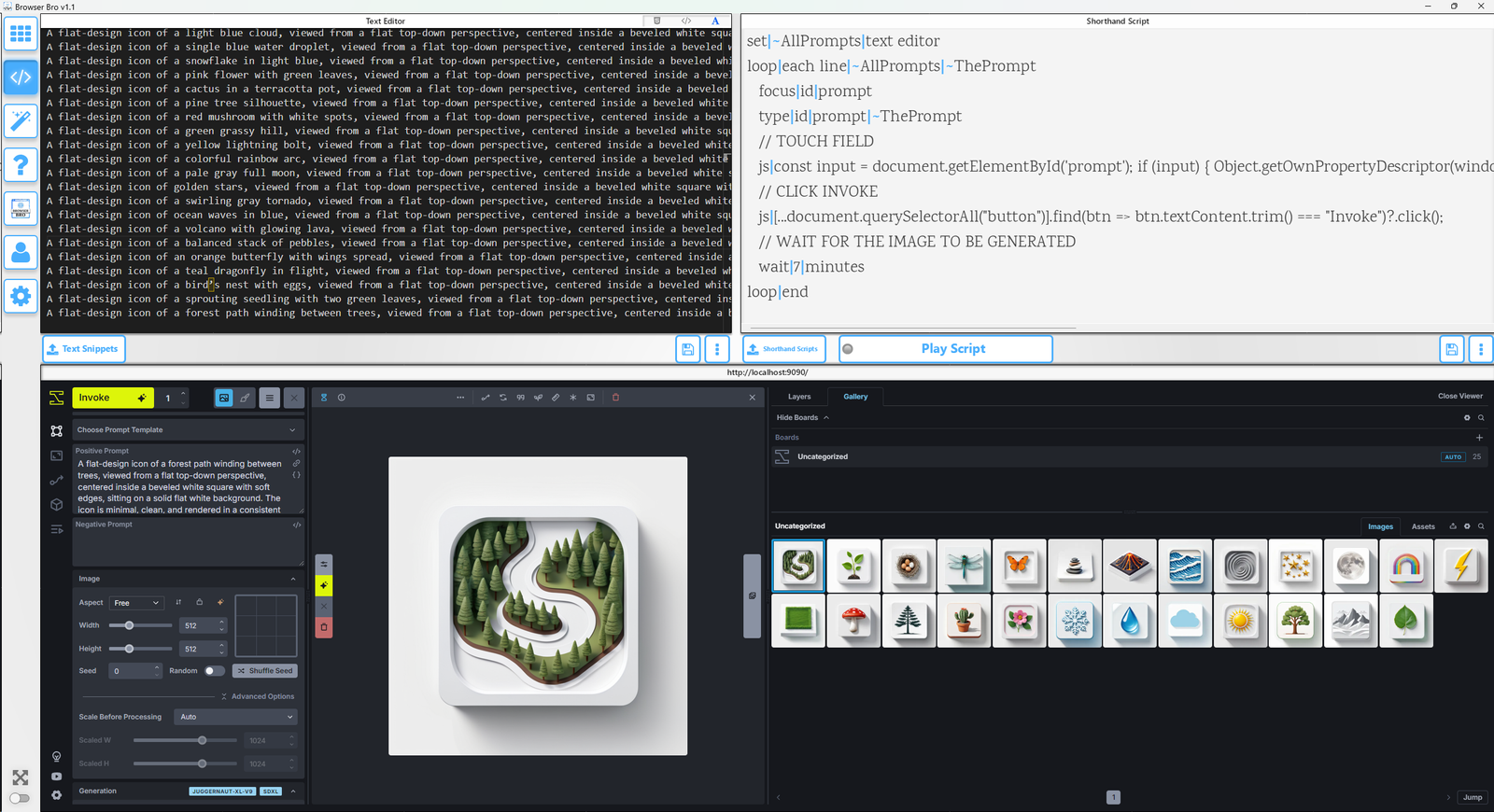
  3. Open Browser Bro and Open the Scripting page
    1. Switch the Editor to “Text” and paste your prompts into it.
    2. Copy the script from the field below the video, into the right most Shorthand Script Field
  4. Log into Invoke AI, set your settings.
  5. Press Play Script when ready
  6. Use Loop + Delay: Use the LOOP function to iterate through your prompt file and send each prompt to your image generation tool (e.g., InvokeAI, ComfyUI, Stable Diffusion WebUI).
  7. Point & Automate: Target the browser input field and button with the visual selector. Browser Bro sends the prompts one by one, auto-submitting as needed.
  8. Relax or Optimize: Go do something else. Or tweak the script mid-run without restarting.
    (Stop the script, delete the lines that already ran)
    You’re now running a reproducible image generation pipeline.

 Benefits

  • Massive Time Savings: Queue hundreds of prompts in minutes instead of manually entering them one by one.
  • Creative Consistency: Run variant prompts with controlled variables for style, subject, or composition.
  • Dataset-Ready: Generate training datasets or visual content for machine learning, eBooks, or game assets with the best possible reproducibility ).
  • Works Offline: Ideal for local-first setups using tools like InvokeAI, Stable Diffusion or ComfyUI on your own hardware.
  • No API Keys Required: Works with local UIs — no extra services or costs needed.The time-lapsed demo below is not of model accuracy and generation accuracy, its about the workflow we call “planned prompting”.  This is a local instance of invoke.ai and Browser Bro working together to generate an icon set:
Invoke AI Example:

				
					go|http://localhost:9090/
set|~AllPrompts|text editor
loop|each line|~AllPrompts|~ThePrompt
		focus|id|prompt
		type|id|prompt|~ThePrompt
		// TOUCH FIELD
		js|const input = document.getElementById('prompt'); if (input) { Object.getOwnPropertyDescriptor(window.HTMLTextAreaElement.prototype, 'value').set.call(input, input.value + ' '); input.dispatchEvent(new Event('input', { bubbles: true })); }
		// CLICK INVOKE
		js|[...document.querySelectorAll("button")].find(btn => btn.textContent.trim() === "Invoke")?.click();
		// WAIT FOR THE IMAGE TO BE GENERATED, ADJUST BASED ON GENERATION TIME OF MODEL
		wait|8|minutes
loop|end
				
			
Scroll to Top

🖥️ Browser Array – Monitoring & Presentation

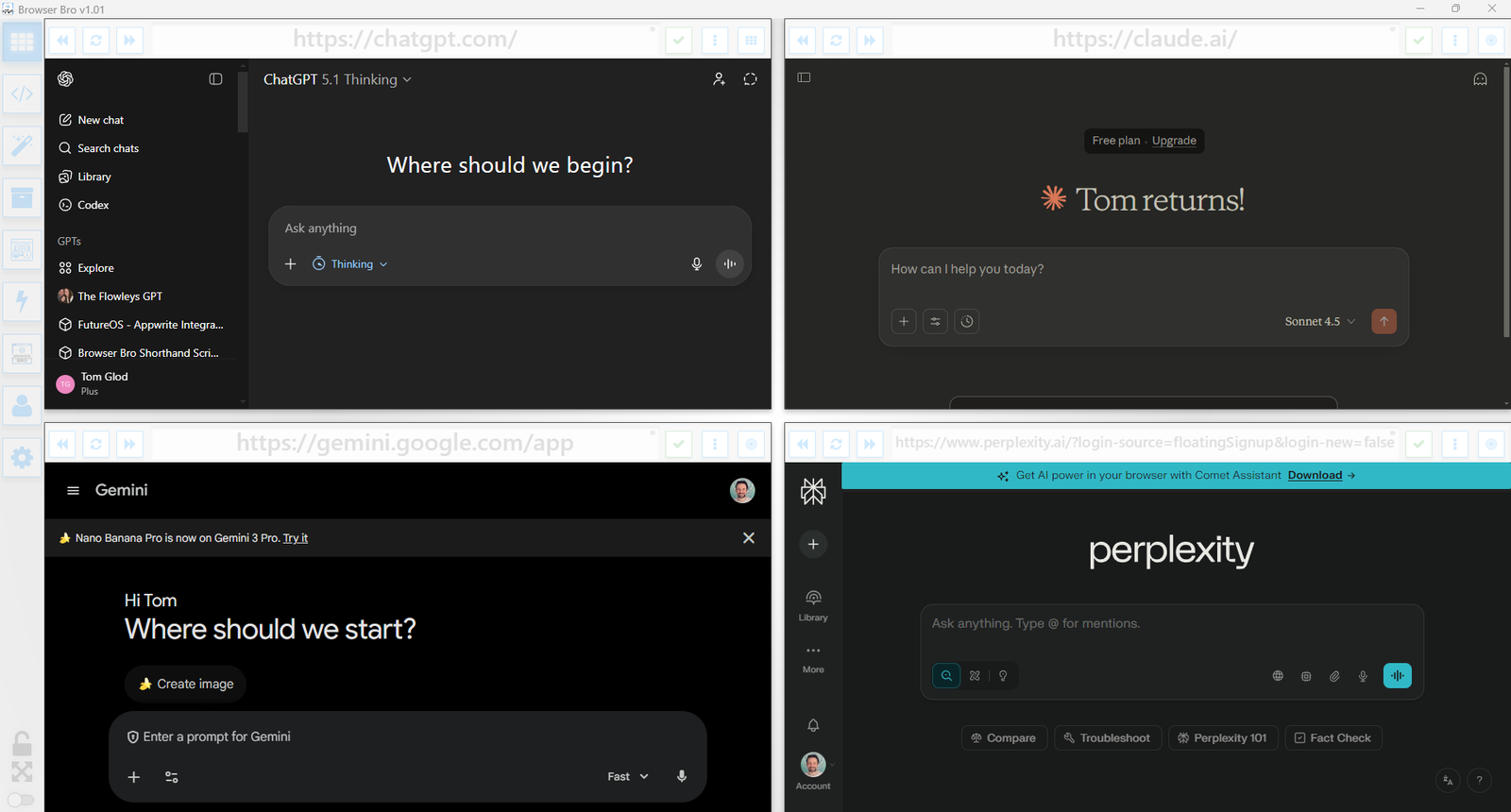
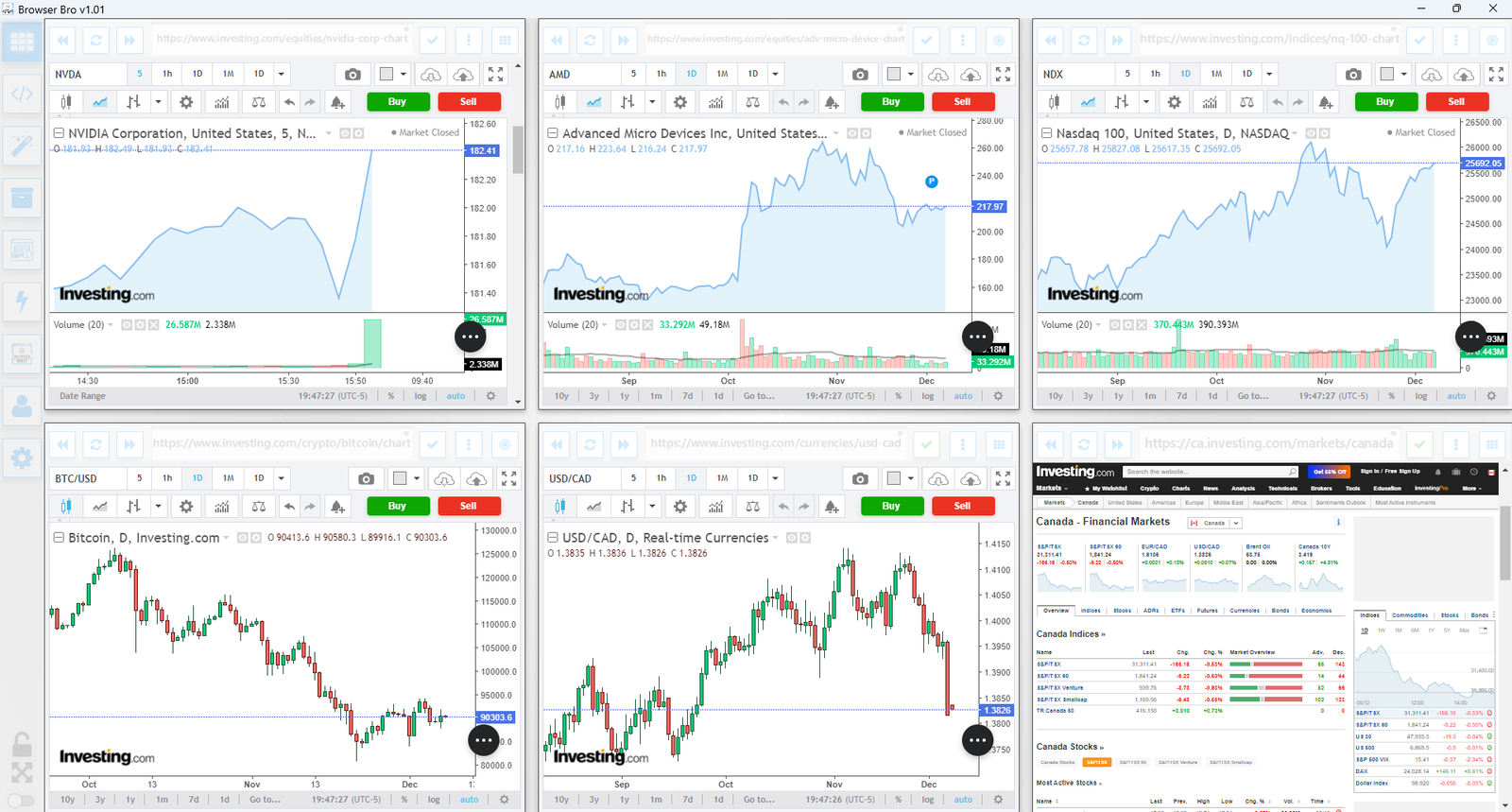
View and manage up to 16 browser instances—all in a single and resizable window. The Browser Array gives you real-time, at-a-glance visibility and makes it effortless to switch between focus and overview modes.

  • ✅ Monitor up to 16 live websites side-by-side
  • ✅ Works great with dashboards, analytics, social feeds, and more
  • ✅ Set per-browser zoom, scroll, and auto-refresh
  • ✅ Focus mode lets you enlarge and control one browser at a time
  • ✅ Present content cleanly from a single or multi-browser view
  • ✅ Easily automate actions in each browser using Shorthand Scripts

How It Works

Open anywhere from 1 to 16 browser panels inside your Browser Bro window.

Each panel can be customized with its own URL, zoom level, scroll position, and refresh interval.

For live presentations or focused work, toggle a browser into focus mode to expand it and interact with it directly.

It’s the perfect tool for creators, analysts, trainers, and developers who need more than one tab—and more control than any browser offers by default.

🔒 Kiosk Mode

Kiosk Mode is perfect for public displays, demos, training environments, or anywhere you need to lock the browsing experience to a specific page—or category of pages.

  • ✅ Prevents navigation away from chosen content
  • ✅ Easy to configure per browser widget
  • ✅ Works with URL prefixes to define “safe zones”
  • ✅ Instantly reloads if a user tries to go off-limits
  • ✅ Ideal for kiosks, classrooms, or training labs

How It Works

Each browser widget in your array can have kiosk mode turned on individually.

You define an Allowed URL Prefix—like https://example.com/training/.

If the user navigates to a page outside of that prefix, Browser Bro refreshes the current page automatically, keeping them inside the allowed range.

No interruptions, no confusion—just a locked-in experience for your audience.

📊 Nail Your Next Presentation

Whether you’re teaching, demoing, pitching, or streaming, Browser Bro turns your screen into a dynamic multi-source stage. Present like a pro with full control over every resource in your array.

  • ✅ Load up to 16 different resources at once—each in its own browser panel
  • ✅ Focus on any resource instantly, or cycle through them one by one
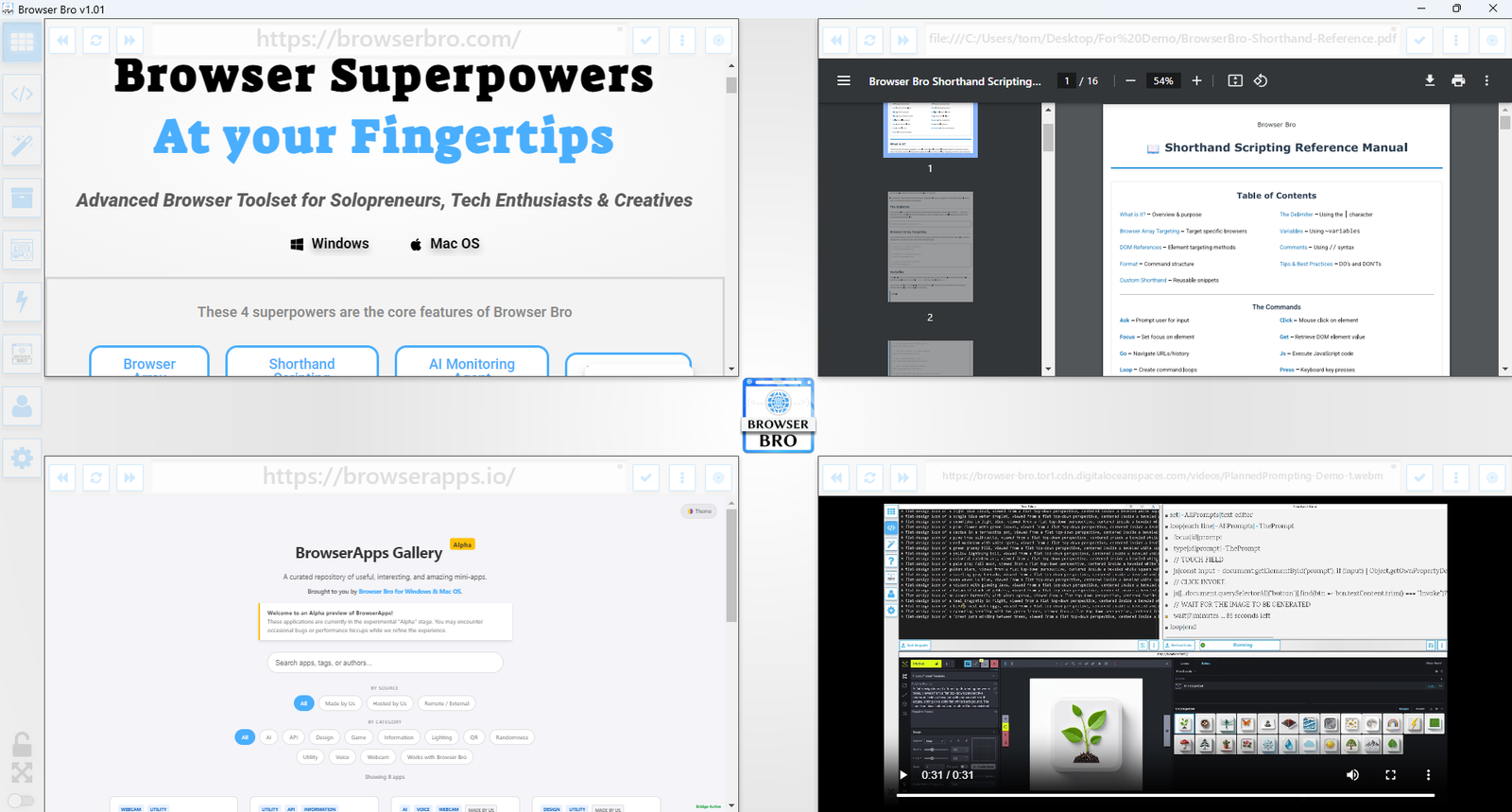
  • ✅ Include any browser-viewable content: websites, dashboards, slides, docs, videos, PDFs
  • ✅ Use kiosk mode to keep the presentation safe and locked-in

Record Your Presentations

With screen recording tools, you can capture your full array layout—including focused transitions, annotations, live interactions, and multi-tab storytelling—all in one seamless take.

Whether you’re making a training video, documenting a workflow, or producing a polished walkthrough, Browser Bro array can help your presentation to stand out.

🎥 Streamers: Browser Array + OBS

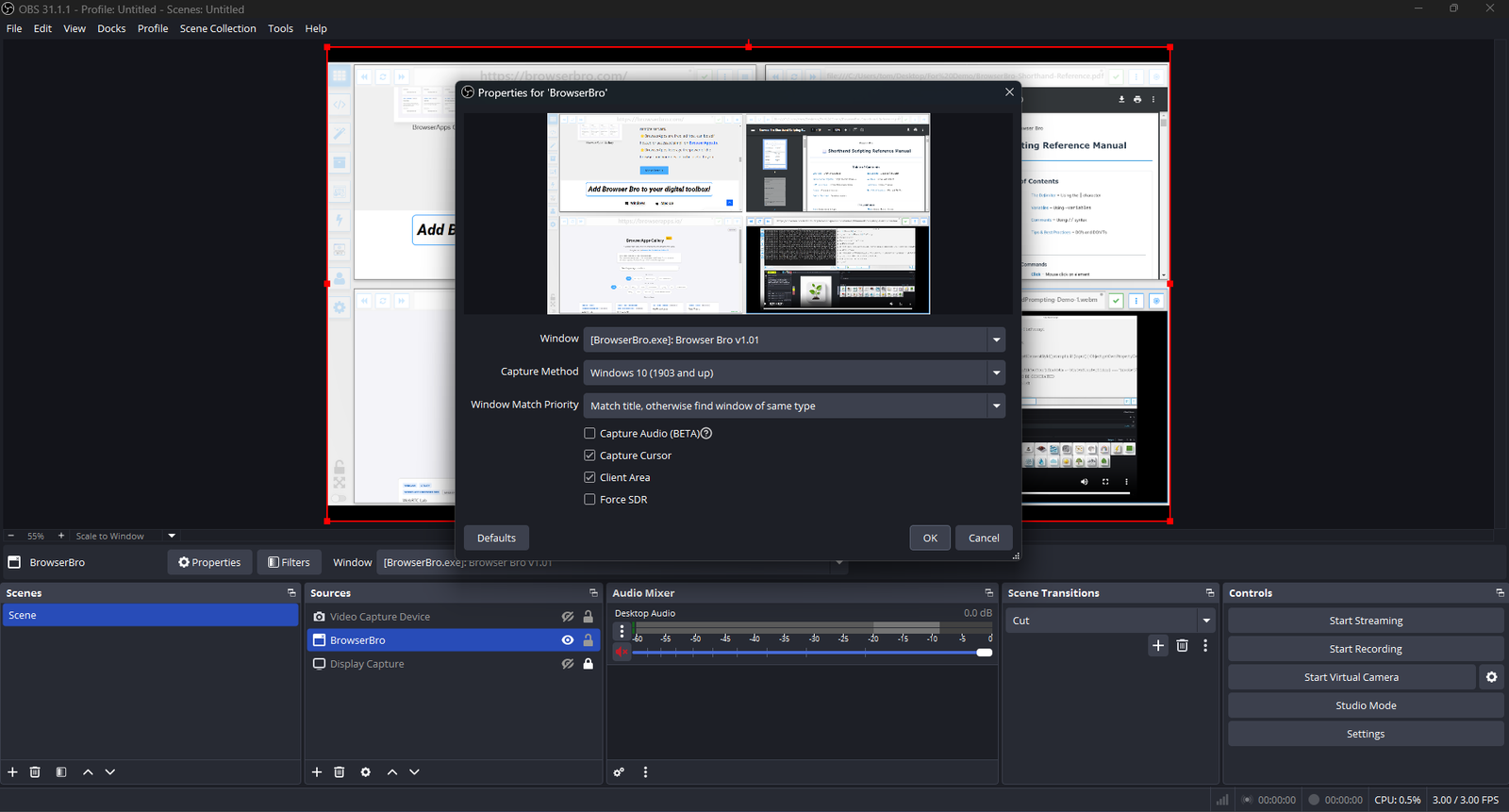
Streamers often need to share portions of multiple live pages at once—chat, alerts, stats, and dashboards. The Browser Array gives you all of them inside a single window. OBS sees that window as one clean source, no extra browser juggling or overlays required.

  • ✅ Combine multiple browsers into one OBS-ready window
  • ✅ Up to 16 live sites displayed in a grid or column view
  • ✅ Individual panel controls: zoom, scroll, and optional auto-refresh
  • ✅ Focus Mode to highlight one panel full-screen without changing your scene setup
  • ✅ Optional branding or layout presets for polished streaming setups (Advanced+)

One Source, Many Browsers

The Browser Array behaves like a single virtual monitor. OBS captures it once, while each embedded browser inside stays fully live and interactive. This means chat windows, dashboards, and web tools all stay synced and active—without adding more sources or slowing down your stream.

Switch layouts, resize panels, or swap URLs in real time. OBS still sees it as one window, keeping your workflow simple and stable.

Common Streaming Uses

  • Chat, alerts, and analytics in one live feed
  • Keeping sponsor pages and timers visible off-camera
  • Browser-based demos or web tutorials without scene switching
0
Would love your thoughts, please comment.x
()
x